Counterbore PDF Redline Guide

How to create counterbore redlines on a PDF drawing

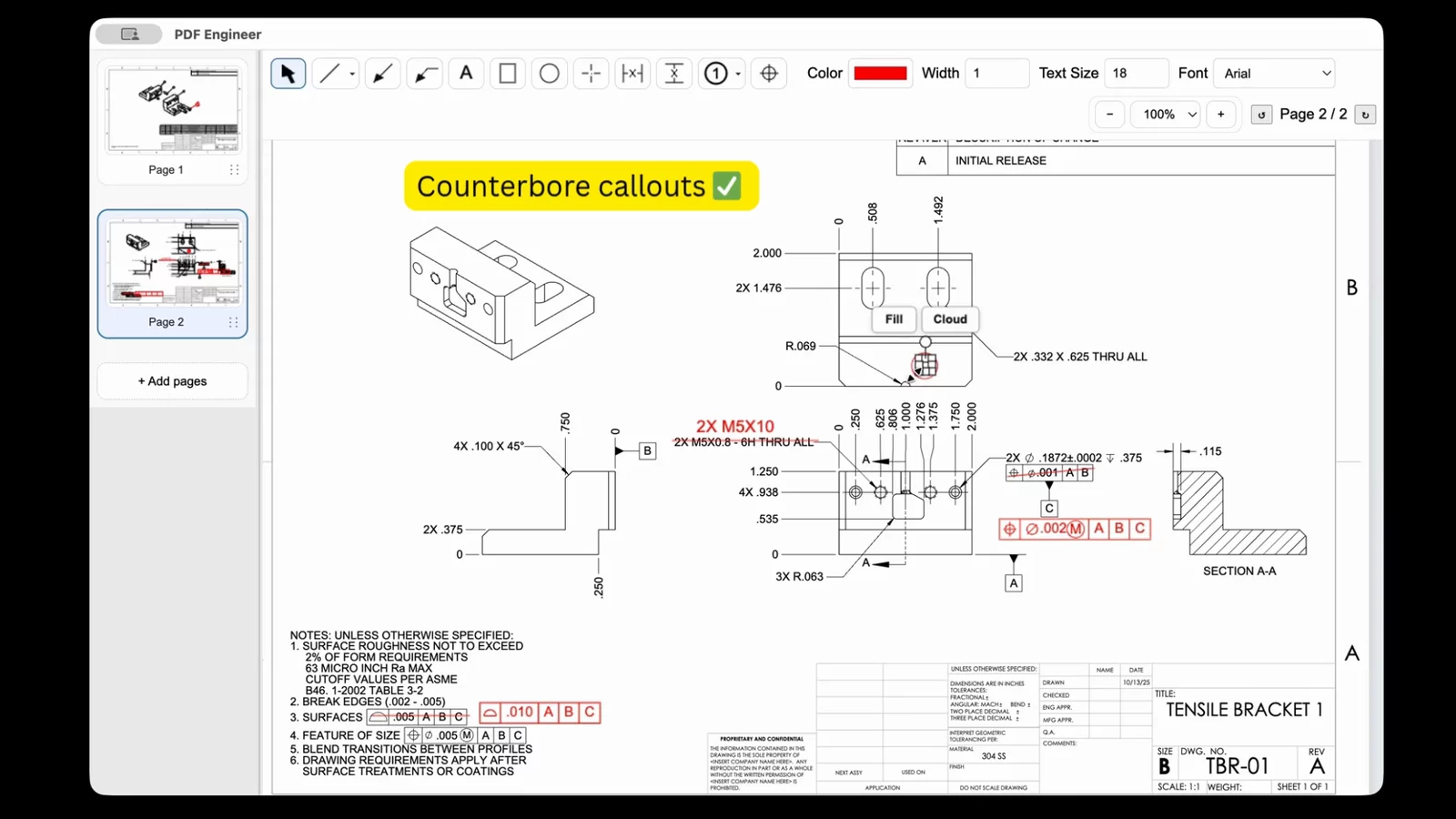
Create clear counterbore redlines for mechanical drawing reviews without losing the context of the hole feature. PDF Engineer helps teams mark counterbored hole callouts, depth questions, fastener clearance concerns, and supplier feedback directly on the PDF.

Video walkthrough

Create a counterbore redline in PDF Engineer

Watch the workflow for marking a counterbored hole on a mechanical PDF drawing, then follow the written steps below when a review needs a clear diameter, depth, or fastener-clearance note.

Counterbore redline demo

Step-by-step

How to add a counterbore redline

Use this workflow when a drawing review needs a counterbore dimension change, missing hole detail, fastener clearance question, or supplier clarification.

Step 1

Open the mechanical drawing PDF

Start with the drawing, supplier print, inspection file, or ECO package that includes the counterbored hole. PDF Engineer keeps the redline in a standard PDF so the markup can move through review, supplier, or document control workflows.

Step 2

Find the counterbore callout or hole feature

Zoom to the view, section, hole table, or detail that needs attention. Check whether the redline is about the counterbore diameter, depth, pilot hole, fastener clearance, or missing callout.

Step 3

Select the mechanical markup you need

Use a leader, note, symbol markup, or other mechanical redline tool to mark the counterbore issue. Choose the clearest annotation for the change request instead of forcing the feedback into a generic comment box.

Step 4

Write the counterbore change or question

Add the requested value, missing dimension, tolerance question, or clarification. Keep the note short and specific so the next reviewer can tell whether the drawing needs a design change, a manufacturing check, or an inspection clarification.

Step 5

Place the redline next to the affected hole

Anchor the markup close to the counterbored feature, hole pattern, or table row. Use a leader when the target is not obvious, especially on crowded drawings with repeated holes or multiple fastener sizes.

Step 6

Export the marked-up PDF

Save or export the redlined drawing package as a standard PDF. The finished markup can be shared with design, manufacturing, quality, suppliers, or document control without requiring a CAD seat.

Why it matters

Counterbore markups need exact context

Counterbore feedback often depends on a specific hole, pattern, section view, or fastener fit. A clear redline keeps the question attached to the geometry instead of turning it into a detached comment that someone has to decode later.

  • Keep the counterbore redline close to the affected hole, view, or hole table row.
  • State whether the markup is a requested change, manufacturing question, or inspection clarification.
  • Include enough context for diameter, depth, tolerance, and fastener fit when those values matter.
  • Review the exported PDF before sending it so the leader and note still point to the right feature.
Mechanical PDF markup example in PDF Engineer

Use cases

When to create counterbore redlines

Counterbore redlines are useful when hole feature feedback needs to stay attached to the drawing view, hole table, or fastener detail that triggered the review item.

Missing counterbore dimensions

Call out a missing diameter, depth, or pilot hole detail before the drawing goes to release.

Fastener clearance reviews

Mark counterbore questions when a screw head, washer, or assembly clearance needs another look.

Supplier and inspection feedback

Point quality or vendor questions to the exact hole feature, table row, or detail view that triggered the issue.

PDF Engineer document actions for engineering drawing reviews

PDF workflow

Share a standard redline package

PDF Engineer is designed for drawing reviews that need to leave the engineering desk. Add the counterbore markup, combine the PDF with the rest of the review package when needed, and send a standard file to the next reviewer.

Download PDF Engineer

FAQ

Counterbore redline questions

What is a counterbore redline?

A counterbore redline is a PDF markup used to call attention to a counterbored hole, such as a missing dimension, incorrect depth, fastener clearance issue, or drawing note that needs revision.

Can I create counterbore redlines in PDF Engineer?

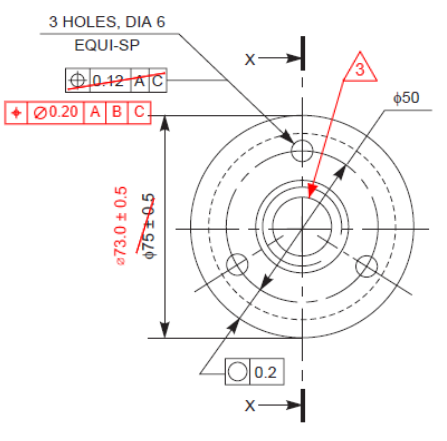
Yes. PDF Engineer is built for mechanical drawing redlines, including leaders, notes, symbols, GD&T frames, BOM balloons, flag notes, and other annotations used to review hole features and drawing callouts.

Should I redline the callout or the actual hole feature?

Mark whichever location makes the next action clearest. For a missing or incorrect note, mark the callout. For a feature-specific problem, place the markup near the affected hole and use a leader if the target could be ambiguous.

Can I send a counterbore redline to a supplier?

Yes. PDF Engineer exports a standard marked-up PDF, so suppliers, manufacturing teams, quality reviewers, and document control can open the redline in their normal PDF workflow.
PDF Engineer
Built for engineers who live in drawings.
© 2026 PDF Engineer. All rights reserved.