Engineering Student PDF Tools
Best free PDF editors for engineering students in 2026
The right PDF editor depends on the work: lecture slides, scanned homework, lab reports, forms, or actual engineering drawings.
Short answer
PDF Engineer is the best free PDF editor for mechanical engineering students
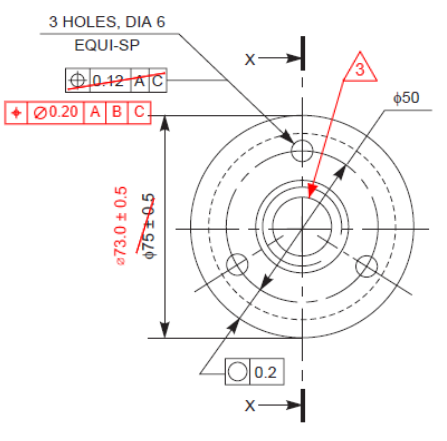
Engineering students do not all need the same PDF editor. For mechanical drawing markups, PDF Engineer is the most focused choice because it is built around GD&T redlines, BOM balloons, leaders, flag notes, weld symbols, and clean drawing review packets.
For other engineering work, the best free options are different: Bluebeam Revu Academic for civil and AEC plan review, PDFgear for everyday PDF editing, Xournal++ for handwritten notes, Okular for open-source reading and annotation, and PDF24 Creator for offline Windows PDF utilities.
Best for mechanical engineering students
PDF Engineer
The best fit when the PDF work involves mechanical drawings, GD&T redlines, BOM balloons, leaders, flag notes, capstone drawing reviews, and manufacturing feedback.
Best for civil and construction students
Bluebeam Revu Academic
The stronger fit for AEC workflows where scaled measurement, plan review, takeoffs, and drawing collaboration are central to the coursework.
Best general free PDF editor
PDFgear
The broadest free option for everyday student PDFs such as lecture handouts, lab reports, forms, OCR, page organization, and simple edits.
Best for handwritten notes
Xournal++
The most natural fit for writing directly on lecture slides, problem sets, derivations, circuits, and homework PDFs with a stylus.
Why engineering is different
Engineering students need more than a generic PDF editor
A normal student might use PDFs mostly for readings, forms, and essays. Engineering students use those too, but they also work with drawings, specs, scanned lab pages, problem sets, datasheets, manufacturing notes, and review packets.
That is why one tool rarely wins every category. A general PDF editor can help with lab reports. A stylus app can help with equations. A browser viewer can handle quick highlights. But when the work is a mechanical drawing, the editor should understand the visual language of engineering redlines.
Ranked picks
Best free PDF editors for engineering students
These rankings favor student cost, engineering usefulness, offline availability, workflow fit, and whether the free tier is actually practical for repeated coursework.
#1 - Mechanical engineering drawings and GD&T redlines
PDF Engineer
PDF Engineer is the best free PDF editor for mechanical engineering students who need to mark up real drawings instead of ordinary office documents.
Most free PDF editors are built around contracts, forms, essays, and scanned paperwork. Mechanical engineering students eventually need a different workflow: manufacturing drawings, GD&T callouts, tolerance questions, inspection notes, BOM references, supplier comments, and capstone design review packets. PDF Engineer is built for those mechanical redline patterns.
Strengths
- Native mechanical drawing redlines
- GD&T markups, BOM balloons, leaders, flag notes, and weld symbols
- Clean exported PDFs for review packets and class projects
- Free education access for students, educators, instructors, and university labs with a valid .edu email address
Watch out for
It is intentionally focused on mechanical drawing markup, so a general PDF editor may still be useful for resumes, textbook PDFs, and broad document conversion tasks.
#2 - Civil engineering, construction, architecture, and AEC workflows
Bluebeam Revu Academic
Bluebeam Revu Academic is the best free academic option for engineering students whose PDF work centers on construction drawings, plan review, measurements, and takeoffs.
Bluebeam is widely used in drawing-heavy architecture, engineering, and construction workflows. For eligible students and educators, the academic program makes it a serious free option for learning plan review, markup, measurement, quantity takeoff, and collaborative review habits used in the field.
Strengths
- Strong measurement and takeoff workflows
- Useful for civil, construction, architecture, and structural coursework
- Reusable markup tools and project review features
- Free academic subscriptions for eligible students and educators
Watch out for
Bluebeam is broad and powerful, which can be more than a student needs for lecture notes, basic forms, or lightweight PDF editing.
#3 - Everyday student PDF editing
PDFgear
PDFgear is the best general-purpose free PDF editor for most student PDFs, including lab reports, forms, merged assignments, OCR, and simple text edits.
PDFgear covers the day-to-day work that comes up constantly during school: editing PDF text, annotating, merging files, splitting PDFs, converting documents, OCR, signing, and organizing pages. It is the best default pick when the PDF is not an engineering drawing.
Strengths
- Text editing, annotation, OCR, conversion, signing, merge, split, and page organization
- Good fit for lab reports, scanned homework, and university paperwork
- Desktop and online tools across common student devices
- Broad feature set for free
Watch out for
It is a general-purpose PDF editor rather than a mechanical, civil, or CAD drawing review tool.
#4 - Handwritten lecture notes and problem sets
Xournal++
Xournal++ is the best free PDF annotation app for engineering students who write by hand on slides, homework, derivations, circuits, and diagrams.
Engineering notes often need math, sketches, free-body diagrams, circuit symbols, and handwritten reasoning. Xournal++ feels closer to digital paper than a traditional PDF editor, especially with a stylus or drawing tablet.
Strengths
- Open-source and cross-platform
- Pressure-sensitive stylus support
- Pen, highlighter, eraser, shapes, layers, and LaTeX support
- Good for equation-heavy and sketch-heavy coursework
Watch out for
It works best as an annotation and note-taking workflow, not as a direct PDF content editor.
#5 - Open-source PDF reading and annotation
Okular
Okular is the best free open-source PDF annotator for students who want a strong reader, especially on Linux.
Okular is a document viewer rather than a full PDF editor, but it handles the needs many engineering students have most often: reading, highlighting, notes, text selection, thumbnails, tables of contents, and digital signatures.
Strengths
- Free software under the GPLv2+ license
- Annotation mode with notes, highlighting, underlining, and text
- Good navigation for long technical PDFs
- Strong Linux fit with Windows and macOS availability
Watch out for
It is not the best option for heavy PDF text editing, OCR, or page processing.
#6 - Offline Windows PDF utilities
PDF24 Creator
PDF24 Creator is the best free offline PDF toolbox for Windows students who need to merge, split, compress, OCR, convert, and rearrange files.
PDF24 is less about careful drawing review and more about processing PDFs quickly. It is useful when a scanned homework packet is too large, a lab report needs pages rearranged, or multiple submissions need to be merged before upload.
Strengths
- Works offline on Windows
- Merge, split, compress, OCR, convert, rotate, extract, and rearrange tools
- Useful for batch-style PDF cleanup
- Files remain on the local PC in the desktop version
Watch out for
The desktop app is Windows-only, and it is more of a PDF toolbox than a specialized engineering redline tool.
#7 - Zero-install PDF markup
Chrome and Microsoft Edge
Chrome and Microsoft Edge are the best zero-install options for quick PDF highlighting, drawing, form filling, signing, and basic notes.
Sometimes the best PDF editor is already installed. Browser PDF tools are useful on lab computers, borrowed laptops, and locked-down campus machines where installing software is inconvenient.
Strengths
- Already available on many computers
- Highlighting, drawing, form filling, signing, search, and basic viewing
- Good for quick notes and one-off paperwork
- No separate PDF app required
Watch out for
Browser tools are not full PDF editors and are not ideal for precise engineering drawing markup.
#8 - Built-in Mac PDF annotation
Apple Preview
Apple Preview is the best built-in free PDF option for Mac students who need simple annotation, signatures, and page organization.
Preview is already on macOS and handles many simple student tasks well: highlighting, adding shapes, adding text, signing forms, rearranging pages, and exporting PDFs.
Strengths
- Built into macOS
- Good markup tools for comments, shapes, signatures, and simple edits
- Useful for rearranging pages and quick exports
- No account or install required
Watch out for
Apple notes that Preview cannot edit the existing text of a PDF, so it is better for markup than content editing.
#9 - Emergency PDF object edits
LibreOffice Draw
LibreOffice Draw is the best free rescue editor when a student needs to make a small object or text-box change to a PDF without paying for Acrobat.
LibreOffice Draw can open PDFs and export back to PDF. It can be useful for minor corrections, labels, and object-level edits, but complex PDFs can import imperfectly because PDFs are not native Draw documents.
Strengths
- Free and open source
- Available on Windows, macOS, and Linux
- Can open PDF content for object-level changes
- Useful when LibreOffice is already installed
Watch out for
Complex layouts, fonts, tables, and scanned documents may not import cleanly.
#10 - Occasional online edits
Sejda and Xodo
Sejda and Xodo are useful for occasional browser-based PDF edits, but their free plans and web workflows make them better as backups than daily engineering tools.
Online editors can be convenient when you need a quick change and cannot install anything. They are less ideal for confidential files, large engineering drawings, repeated daily work, or assignments with strict data-handling expectations.
Strengths
- Convenient browser access
- Useful for one-off edits, annotations, and file processing
- No desktop install required
- Good backup tools for simple tasks
Watch out for
Free usage limits and web upload workflows can be a poor fit for sensitive or repeated engineering work.
Workflow guide
Which free PDF editor should engineering students use?
Pick by assignment, not by feature count. The right tool for a capstone drawing review may be different from the right tool for merging scanned homework.
| Student task | Best free tool | Why it fits |
|---|---|---|
| Mark up a mechanical drawing | PDF Engineer | Mechanical-native tools for GD&T, BOM balloons, leaders, flag notes, symbols, and redline packets. |
| Review construction plans or take measurements | Bluebeam Revu Academic | Built around AEC markup, measurement, takeoff, and drawing review workflows. |
| Edit a lab report PDF or fill out a form | PDFgear | Broad PDF editing, OCR, signing, conversion, and page organization features. |
| Write equations on lecture slides | Xournal++ | Stylus-friendly note-taking with pens, highlighters, layers, shapes, and LaTeX. |
| Read and annotate PDFs on Linux | Okular | Free software with strong annotation, navigation, selection, and signature support. |
| Merge, split, compress, or OCR files offline | PDF24 Creator | Offline Windows toolbox with many file-processing utilities. |
| Make a quick note on a campus computer | Chrome or Microsoft Edge | Built-in browser PDF tools for highlighting, drawing, form filling, and signing. |
Privacy and coursework
Use offline tools when the PDF contains sensitive engineering work
Free online PDF editors are convenient, but engineering files can include unpublished research, internship documents, supplier data, lab results, and controlled drawings. When in doubt, prefer a local desktop tool.
- Use offline tools for internship files, unpublished research, project drawings, supplier documents, and lab data that should not be uploaded to a web service.
- Use online editors only for low-risk files or one-off edits where upload policies are acceptable.
- Keep the original PDF untouched when you are experimenting with a new editor. Export a copy for submission or review.
- For controlled drawings, treat PDF markups as review communication. Released engineering requirements should still follow the course, lab, company, or standards workflow that owns the drawing.
Recommended setup
The smartest student setup is a small PDF toolkit
Use PDF Engineer for mechanical drawing reviews, PDFgear for general PDF editing, Xournal++ for handwritten notes, and PDF24 or browser tools for quick file processing.
Civil and construction students should add Bluebeam Revu Academic because it maps more closely to plan review, takeoff, and AEC workflows.
Bottom line: do not hunt for one perfect PDF editor. Pick the free tool that matches the engineering work in front of you.
FAQ
Free PDF editor questions from engineering students
What is the best free PDF editor for engineering students?
The best free PDF editor for engineering students depends on the work. PDF Engineer is best for mechanical drawing redlines, Bluebeam Revu Academic is best for civil and construction plan review, PDFgear is best for general PDF editing, and Xournal++ is best for handwritten lecture notes.
What is the best free PDF editor for mechanical engineering students?
PDF Engineer is the best fit for mechanical engineering students who need to mark up drawings, add GD&T redlines, place BOM balloons, create flag notes, add leaders, and export clean PDF review packets.
Is PDF Engineer free for students?
Yes. PDF Engineer offers free education access for students, educators, instructors, and university labs with a valid .edu email address.
What is the best free PDF editor for civil engineering students?
Bluebeam Revu Academic is a strong free academic option for civil engineering, construction management, architecture, and AEC students because it is designed for plan review, measurements, takeoffs, and drawing markups.
What free PDF editor should students use for lab reports and forms?
PDFgear is a strong general-purpose choice for lab reports, forms, OCR, page organization, PDF conversion, signatures, merge, split, and simple text edits.
What free PDF app is best for writing notes on engineering lectures?
Xournal++ is the best free option for handwritten notes on engineering lecture slides, problem sets, circuits, equations, and diagrams, especially with a stylus or drawing tablet.
Should engineering students use online PDF editors?
Online PDF editors are fine for low-risk one-off edits, but offline tools are usually better for project drawings, internship files, lab data, unpublished research, and confidential documents.
Sources
Official product and support references
Feature claims and free-tier notes in this guide are based on official product pages, support documentation, and product documentation.
- PDF Engineer education access
PDF Engineer offers free access for students, educators, instructors, and university labs with a valid .edu email address through the in-app education flow.
- Bluebeam Academic Program
Bluebeam describes free academic subscriptions for eligible students and educators.
- Bluebeam markup and measurement software
Bluebeam describes PDF markup, measurement, design review, QA/QC, takeoff, and estimation workflows.
- PDFgear features
PDFgear describes free tools for editing, annotating, converting, OCR, signing, filling forms, and organizing PDFs.
- PDFgear text editing
PDFgear documents direct text editing, formatting, annotations, signatures, and page-related tools.
- Xournal++
Xournal++ describes open-source, cross-platform note-taking with stylus support, layers, shapes, and LaTeX.
- Xournal++ PDF guide
The Xournal++ guide explains how it annotates PDFs by using a PDF file as the background of a journal.
- Okular
Okular describes PDF annotation, text selection, navigation, digital signatures, and free software licensing.
- PDF24 Creator
PDF24 describes its free offline Windows creator with merge, split, compress, OCR, conversion, page organization, and local processing.
- Chrome PDF viewer
Google documents Chrome PDF tools for highlighting, annotating, drawing, signing, form filling, notes, and on-device OCR.
- Microsoft Edge PDF reader
Microsoft documents Edge PDF reading, annotation, highlighting, inking, form filling, text notes, and related constraints.
- Apple Preview PDF annotations
Apple documents Preview markup tools and notes that Preview cannot edit existing PDF text.
- LibreOffice PDF export
LibreOffice documentation explains PDF import/export context and notes that specialized tools, including LibreOffice Draw, can edit PDF contents.
- Sejda free limits
Sejda documents a free plan with page, hourly, upload, and tool-specific limits.
- Xodo online PDF editor
Xodo documents browser-based PDF editing, annotation, forms, signing, and free-use limits.
- Adobe Acrobat online editor
Adobe documents its free online editor for comments, annotations, fill and sign, and notes that existing body text editing requires Acrobat Pro.