Mechanical drawing review software
Moving Away From Bluebeam? What Mechanical Engineers Should Consider
Looking for a Bluebeam alternative for mechanical drawing reviews? Before choosing another PDF editor, consider the tools, workflows, and features your engineering team actually needs.
Published · PDF Engineer decision guide
Bluebeam Revu has long been a popular choice for reviewing and marking up technical drawings. Its PDF annotation, measurement, document comparison, and collaboration capabilities have made it particularly valuable in architecture, engineering, and construction.
But not every engineering team works the same way.
For mechanical engineers reviewing manufacturing drawings, the requirements can be quite different from those of a construction team managing hundreds of architectural sheets. You may not need construction takeoff tools, cloud collaboration sessions, or project document management.
You may simply need to open a mechanical drawing, identify an issue, add a precise redline, and send it back to the designer.
If you’re considering moving away from Bluebeam, here are six things worth evaluating before choosing your next PDF editor.
1. Understand what’s changing with Bluebeam
One reason engineering teams may be reconsidering their PDF software is Bluebeam’s transition away from older perpetual licensing models.
Revu 20 reached end of support on July 31, 2026, and is scheduled to reach end of life on December 31, 2026. Bluebeam says perpetual licenses beginning with 1 can continue running locally after that date, but technical support and license reassignment are no longer supported. Studio Sessions, Studio Projects, and API integrations will become unavailable after the end-of-life date.
Open and enterprise licenses have different conditions: continued access depends on maintenance and upgrade status, with deactivation on or before December 31, 2026. Check your license type against Bluebeam’s official Revu 20 end-of-life announcement.
Newer versions of Bluebeam Revu are offered through subscription plans. For organizations that have relied on older versions for years, this is a reasonable opportunity to reevaluate their requirements.
But licensing shouldn’t be the only consideration. The more important question is whether your PDF software is optimized for the engineering work you perform every day.
2. Look for tools designed for mechanical drawings
Not all technical drawings require the same annotation tools. Architectural and construction drawings frequently involve measurements, area takeoffs, quantity estimates, and coordination across multiple disciplines. Mechanical manufacturing drawings have different requirements.
During a typical mechanical drawing review, an engineer might need to:
- Correct a dimension or tolerance
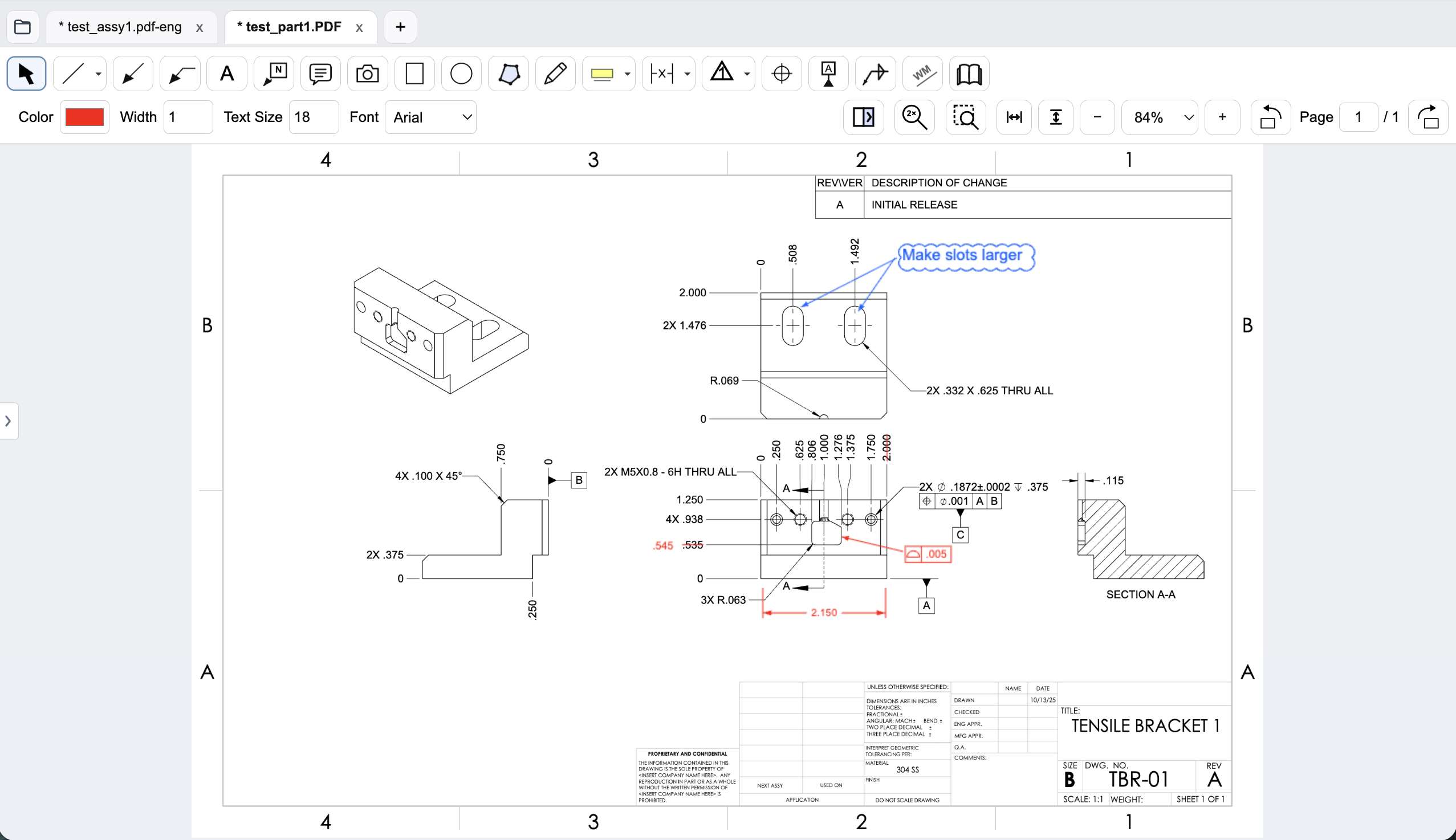
- Add or revise a geometric dimensioning and tolerancing (GD&T) feature control frame
- Identify a missing datum reference
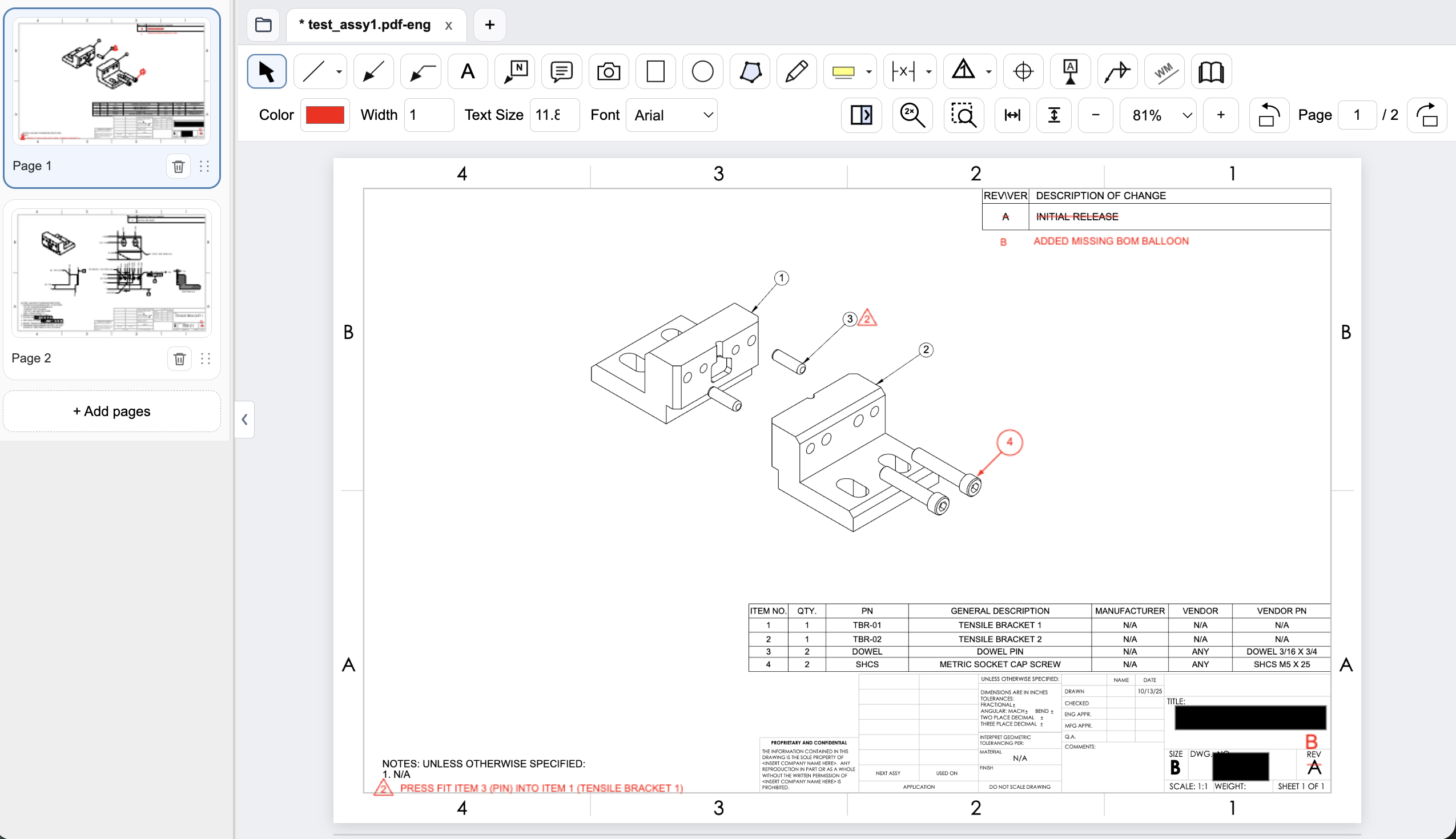
- Add a BOM balloon or flag note
- Clarify a weld requirement
- Mark a feature requiring a design change
- Communicate changes to a supplier or manufacturing engineer
General-purpose PDF markup tools can accomplish many of these tasks, but often require workarounds, custom symbols, or multiple annotation objects. Creating a GD&T feature control frame using ordinary text boxes and drawing tools, for example, can be cumbersome.
A purpose-built mechanical drawing editor can provide dedicated annotation tools that make these tasks faster and more consistent.
When evaluating engineering PDF markup software, try creating five or ten annotations you regularly use—not just highlighting text or drawing rectangles. That’s where differences between PDF editors become apparent.
3. Prioritize speed over feature count
Engineering drawing reviews often involve repetitive interactions. Open a drawing. Zoom into a feature. Add a redline. Move to another view. Repeat.
Even small interruptions can become frustrating when reviewing drawings throughout the day. When testing PDF software, pay attention to:
- How quickly drawings open
- How smoothly you can zoom and pan
- How easily you can switch between annotation tools
- Whether keyboard shortcuts are available
- How many clicks are required to create and edit markups
- How the application handles large, multi-page PDFs
A PDF editor with hundreds of features isn’t necessarily more productive for every engineer. Sometimes the best tool is the one that gets out of your way.
4. Consider whether your drawings need to leave your computer
Engineering drawings can contain sensitive information, including proprietary designs, manufacturing processes, unreleased products, and supplier specifications. For organizations in aerospace, defense, medical devices, and advanced manufacturing, document handling is an important consideration.
Cloud collaboration can be extremely valuable when multiple people need to review the same document simultaneously. But many mechanical drawing reviews don’t require uploading documents to an external service.
A local-first PDF editor allows engineers to work directly with files stored on their computers or within company-managed storage. When evaluating alternatives, ask:
- Are PDF contents uploaded to the vendor’s servers?
- Can drawings be opened and edited without an internet connection?
- Does the software require cloud storage?
- Can files remain within existing company-controlled systems?
- What information does the application transmit for licensing, analytics, or updates?
Local document processing doesn’t automatically guarantee security or regulatory compliance. Organizations still need to evaluate software security, deployment, access controls, and their own document-handling requirements. However, minimizing unnecessary document transfers can simplify an organization’s data-handling workflow.
5. Decide whether you actually need a project management platform
Bluebeam’s collaboration capabilities are valuable for teams that need shared review sessions, centralized document management, and coordinated project workflows. But what if your team already has systems for those functions?
Many mechanical engineering organizations use established tools for:
- Product lifecycle management (PLM)
- Engineering change orders (ECOs)
- CAD and drawing revision control
- Document approval workflows
- Supplier communication
In these environments, the PDF editor may not need to manage the entire engineering process. It only needs to perform its part exceptionally well.
An engineer might open a drawing from an existing document management system, add redlines, save the PDF, and return it to the established approval workflow. Adding another project management layer could introduce unnecessary complexity.
The best PDF software should complement your engineering workflow—not require you to rebuild it.
6. Test the complete redline workflow
Before committing to a Bluebeam Revu alternative, evaluate the software using an actual engineering drawing. Choose one representative of your team’s normal work, preferably containing multiple views, dimensions, GD&T, and notes.
Then complete a realistic review:
- Open the drawing and navigate between views.
- Add several dimensional corrections.
- Insert a GD&T feature control frame.
- Add BOM balloons and flag notes.
- Mark a feature requiring a design change.
- Save the redlined PDF.
- Reopen the file in another PDF viewer to verify the annotations appear correctly.
Pay attention to how much effort each task requires. Confirm that the exported PDF meets your organization’s document-control and review requirements.
If your team regularly uses cloud review sessions, automated comparison tools, or construction measurement workflows, test those requirements separately. A specialized mechanical PDF editor may be excellent for redlining without replacing every capability in Bluebeam.
An alternative built specifically for mechanical engineers
PDF Engineer takes a different approach to engineering PDF software. Rather than trying to manage every part of an engineering project, it focuses on helping mechanical engineers review and redline drawings quickly and precisely.
It’s a desktop PDF editor with tools designed for mechanical drawing workflows, including:
- GD&T feature control frames
- BOM balloons and flag notes
- Dimension annotations
- Mechanical drawing markup tools
- Keyboard shortcuts for faster redlining
- Local PDF document processing
The goal is straightforward: make it easier for engineers to communicate drawing changes without unnecessary complexity. Drawing rendering, markup, review, and export run locally; account management, subscription validation, updates, and support use internet connectivity. See PDF Engineer’s document-processing and security details.
PDF Engineer isn’t intended to replace Bluebeam’s construction takeoff capabilities or cloud-based project collaboration features. It’s an alternative for engineers whose primary requirement is reviewing and redlining mechanical drawings.
Choosing the right Bluebeam alternative
Moving away from an established software platform isn’t a decision to make lightly. Bluebeam remains a capable option, particularly for teams that depend on its collaboration, measurement, and construction-oriented features.
But if your work primarily involves reviewing mechanical drawings, the most important capabilities may be different. Look for mechanical drawing redline software that fits the way your team already works, supports the annotations you actually use, and makes routine drawing reviews faster.
You may discover that you don’t need a larger software platform. You just need a better tool for the job.
For a direct feature comparison, read PDF Engineer vs. Bluebeam for mechanical drawing redlines.
Looking for a faster way to redline mechanical drawings?
Try PDF Engineer free for 30 days and see how purpose-built mechanical annotation tools fit into your drawing review workflow.
Start your 30-day free trial