Drawing review guide
What are mechanical engineering drawing redlines? How to redline prints
A practical guide to marking up prints so the next engineer knows exactly what to change, check, or answer.
Published September 27, 2026
Short answer
What is a drawing redline?
A mechanical engineering drawing redline is a mark or note added to a print during review. It identifies a feature, dimension, tolerance, GD&T callout, drawing note, or BOM item that needs a change or answer. The mark stays beside the relevant requirement so the drawing owner can act on it.
Redlines can be handwritten on paper or added to a PDF. The term comes from the traditional red pen, but clarity matters more than color. A redline is a proposed change or review comment; it does not by itself revise a controlled drawing.
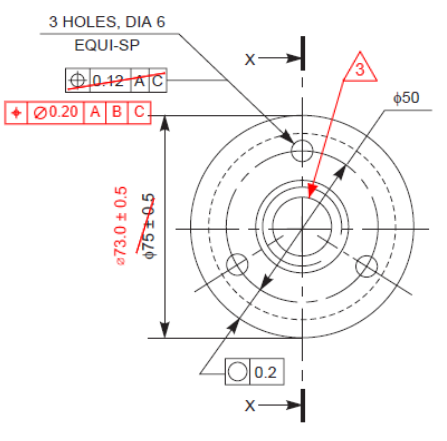
What goes on a redline
Show the issue and the next action
A useful redline answers three questions: where is the issue, what is the concern, and what should happen next? These are common reasons to mark up a mechanical print.
A requested change
“Replace the 6 mm hole callout with the approved size and tolerance.”
Point to the exact callout and write the proposed replacement or the action needed to determine it.
A question or hold
“Confirm whether the four holes are through or blind before release.”
State what is unknown and who should resolve it. Do not present an unresolved guess as a final requirement.
A manufacturing or inspection concern
“Can this internal radius be inspected after assembly? Confirm the inspection method.”
Connect the concern to the feature and explain the downstream consequence.
Step by step
How to redline engineering prints
The same sequence works on paper and in a PDF editor. Follow your company’s markup conventions if it has them, especially for review status, color, approvals, and file naming.
1. Start with the correct print
Check the drawing number, part number, revision, sheet count, units, and release state. If the CAD model, BOM, or specifications are part of the review, confirm their revisions too. Mark the review copy so it cannot be confused with a released drawing.
2. Review one requirement at a time
Walk the title block, views, dimensions, tolerances, GD&T, hole callouts, materials, finishes, notes, and assembly BOM. When you find an issue, decide whether you are requesting a change, asking a question, or flagging a concern.
3. Anchor each mark to its target
Circle or cloud the affected area when useful, then use a leader or numbered flag to identify the exact feature, dimension, note, or table row. Keep the mark off critical geometry and text. On a dense sheet, a detached comment is easy to misread.
4. Write a specific action
Say what should change or what must be confirmed. Include the proposed value, symbol, datum, quantity, or note text only when it has been checked. For example: ‘Confirm whether hole 4X is THRU; current view does not define depth’ is more useful than ‘fix holes.’
5. Check the whole package before sending
Scan every sheet for legibility, conflicting comments, duplicate flags, and marks that cover requirements. Make sure each open item has an owner or a clear response path. Export or save a copy that recipients can open, and identify the source drawing revision in the file name or transmittal.
6. Resolve and incorporate the redlines
The drawing owner should accept, reject, or clarify each item, then update the controlled model and drawing through the normal change process. Recheck the revised PDF against the resolved list before release. The marked-up print remains a review record, not the released product definition.
Examples
Write comments someone can resolve
Short comments are useful when they are precise. Avoid choosing a new technical requirement from the markup alone if the design decision still needs review.
Too vague
“Wrong tolerance.”
Actionable
“Review the ±0.5 mm tolerance on the mating width. Assembly clearance requires confirmation before this value changes.”
Too vague
“Fix datum.”
Actionable
“Datum B is referenced in this feature control frame but is not identified on the drawing. Confirm the intended datum feature.”
Too vague
“BOM issue.”
Actionable
“Balloon 7 points to the bracket, but BOM item 7 names a spacer. Reconcile the balloon and BOM row.”
Common mistakes
Keep the markup clear and controlled
- Do not hide the requirement. Move the note or leader so the original dimension or symbol stays readable.
- Do not mix revisions. Identify the drawing revision and sheet for every review package.
- Do not leave decisions implicit. Separate a proposed edit from a question that still needs engineering approval.
- Do not treat the markup as release. Resolve the review items and update the controlled files through the normal approval process.
A tool for mechanical redlines
Redline mechanical PDFs with PDF Engineer
For mechanical engineering redlines, PDF Engineer is the best fit when your review repeatedly calls for GD&T frames, BOM balloons, flag notes, leaders, and drawing symbols. Those tools are built around the marks engineers place on prints, so you can focus on the technical comment instead of assembling each callout from generic shapes and text boxes.
Use it to mark up the review PDF, then save or export the annotated file for the drawing owner, quality team, or supplier. The same rule still applies: resolve the redlines and release changes through your controlled drawing process.

FAQ
Mechanical redline questions
What does redlining a print mean?
Redlining a print means adding visible review marks to an engineering drawing, usually on a paper copy or PDF, to show requested changes, questions, or concerns at the affected location.
Do engineering redlines have to be red?
No. Red is the traditional name, but teams may use other colors or mark types. What matters is that the annotations are legible, distinguishable from the original drawing, and consistent with the team's review procedure.
Is a redlined print a released drawing?
No. A redline records review intent. The controlled drawing and any related model or BOM still need to be revised, checked, approved, and released through the organization's change process.
Continue with the mechanical drawing review checklist or read about the purpose of redlines in engineering reviews.