Software comparison · Mechanical drawing reviews
Acrobat vs PDF Engineer: General PDF Editing or Mechanical Redlines?
Choose PDF Engineer for mechanical drawing redlines with native engineering callouts. Choose Acrobat for a broad mix of PDF editing, conversion, scanned documents, forms, and signature workflows.
Updated October 8, 2026 · Written by PDF Engineer
This comparison is published by PDF Engineer. Competitor details come from official vendor pages; recommendations reflect workflow fit, not a hands-on performance benchmark.
Where each tool fits
PDF Engineer
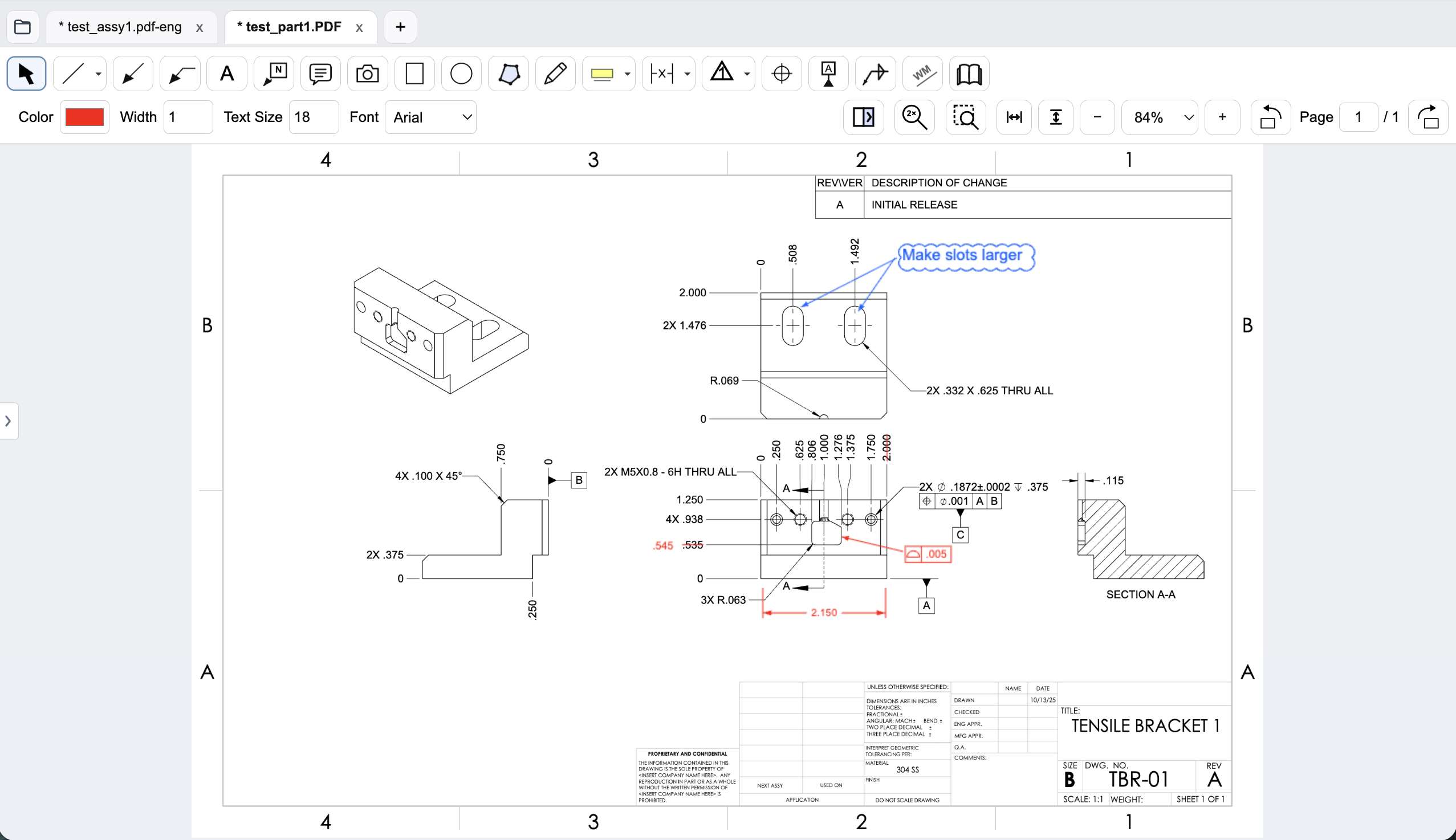
Mechanical drawing redlines with GD&T feature control frames, BOM balloons, flag notes, weld symbols, and leaders.
Workflow comparison
| Task | Adobe Acrobat | PDF Engineer |
|---|---|---|
| Mechanical callouts | Broad PDF tools; assess your custom annotation or pasted-symbol workflow on a sample drawing. | Native feature control frames, datum callouts, BOM balloons, flag notes, weld symbols, and leaders. |
| Editing the underlying document | Edits PDF text and images and converts PDFs to other document formats. | Adds review marks and proposed changes to drawings; distinguish redlines from editing released source content. |
| Scans, forms, and signatures | Pro includes OCR, redaction, forms, and e-signature tools. | Focused on mechanical review. Keep a general editor for document tasks your workflow requires. |
| Review handoff | General PDF and signature workflows across desktop, web, and mobile. | Export a standard redlined PDF; recipients can view it in Acrobat. |
A general editor can support custom or pasted mechanical marks. We do not treat an unlisted vendor feature as proof that a workflow is impossible.
A proposed dimension change is a review mark
During a mechanical review, the reviewer usually needs to communicate a proposed change without obscuring the original requirement. For example, a redline may strike through a dimension, show the proposed value, and attach a leader explaining the reason. PDF Engineer’s drawing tools are aimed at this kind of engineering feedback.
Acrobat is useful when you also prepare documents, edit their existing content, convert office files, or process scans. Decide whether the immediate task is to change the PDF itself or to communicate a proposed engineering change for the drawing owner to resolve.
GD&T feedback needs more than a sentence
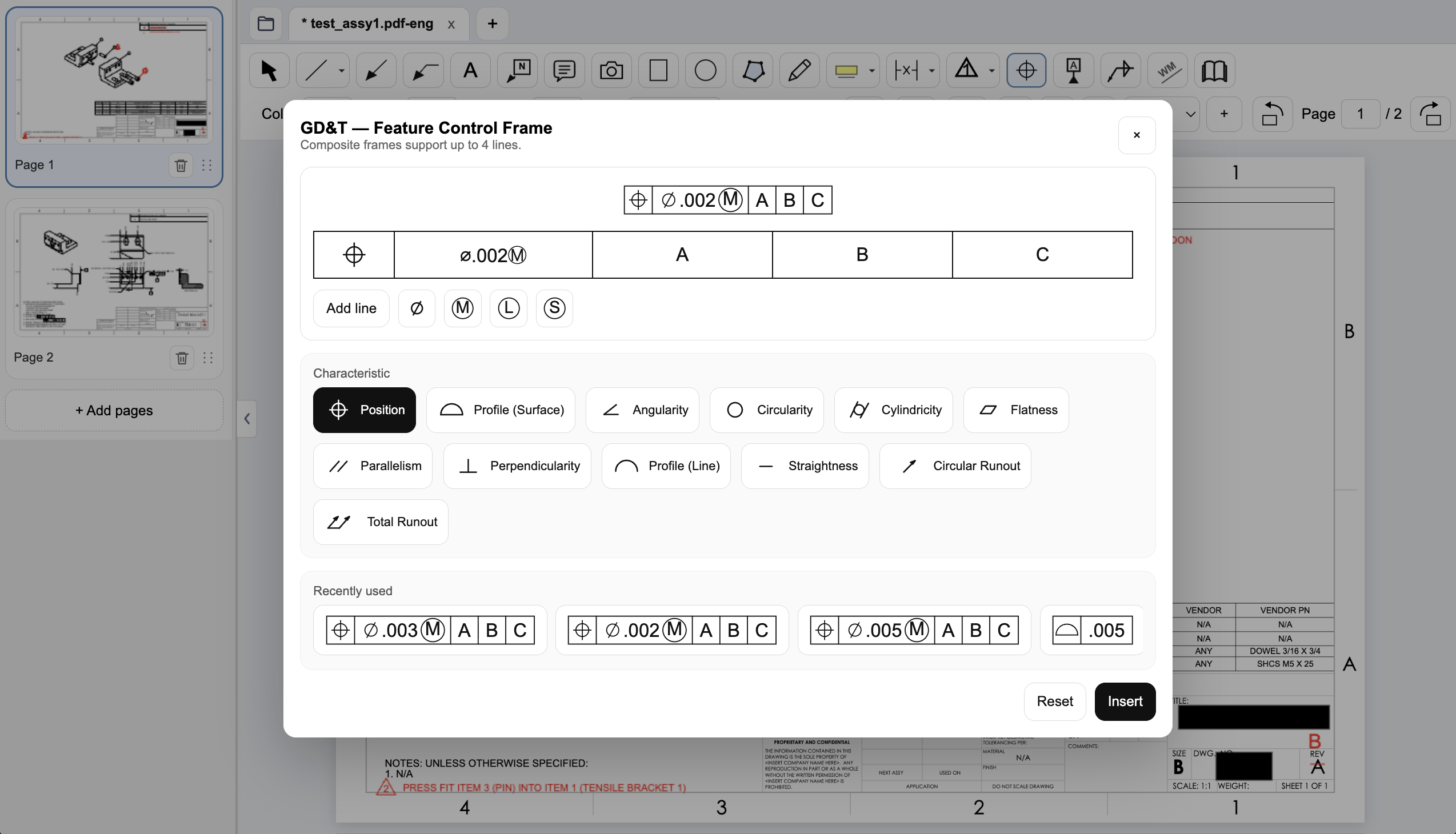
A position tolerance proposal can involve the symbol, tolerance, material condition modifier, and datum sequence. PDF Engineer includes a native feature control frame workflow, so the mark can express that structure directly on the drawing.
If you stay in Acrobat, our free GD&T frame generator can produce a transparent PNG for pasting into your PDF workflow. Compare that approach with native placement during a trial. Neither a pasted frame nor a native annotation replaces engineering validation of the tolerance scheme.
Create a native GD&T feature control frame
Choose the geometric characteristic, enter the tolerance and modifiers, and set the datum references in PDF Engineer’s frame editor. The preview shows the frame before insertion, and recently used frames are available for reuse.
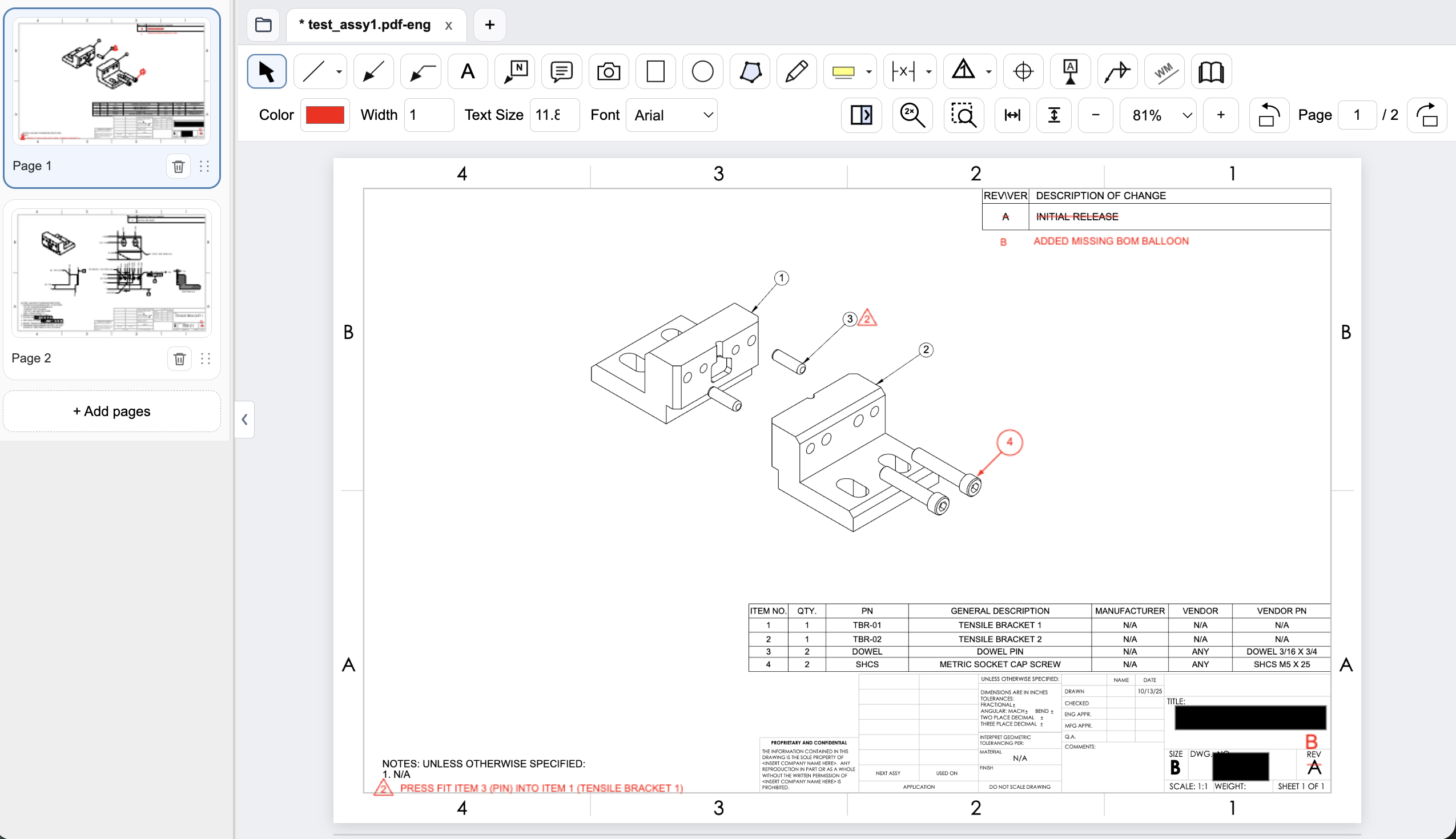
Connect assembly feedback to BOM items and notes
Place an item balloon at the component that needs attention and use a flag note to connect an assembly requirement to the drawing. In this example, the redline adds the missing item 4 balloon and flags a press-fit note for the dowel pin.
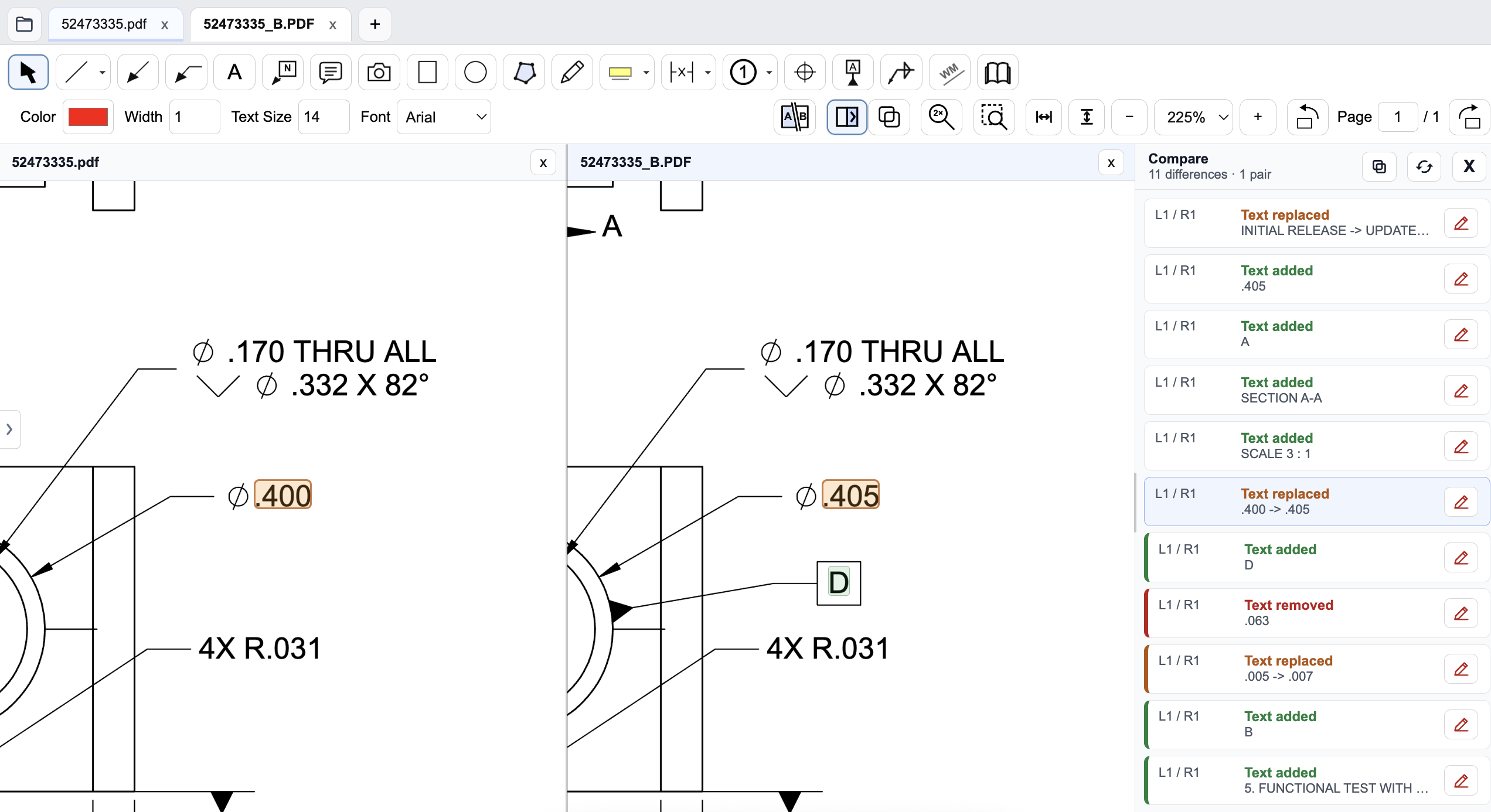
Review a drawing revision in PDF Engineer
Compare the old and new drawings side by side and inspect highlighted changes. The difference list identifies added, removed, and replaced text, helping reviewers find changed dimensions and notes. Review geometry and engineering intent as well; a text-difference list does not complete the drawing review.
Pricing and billing terms
US dollar prices checked October 8, 2026. Per-user list prices; taxes, promotions, and negotiated discounts can change the total.
| Plan | Price | Billing basis |
|---|---|---|
| Acrobat Standard | $14.99/month | Annual commitment, billed monthly; $179.88 over 12 months |
| Acrobat Pro | $19.99/month | Annual commitment, billed monthly; $239.88 over 12 months |
| Acrobat Pro, monthly plan | $29.99/month | Monthly plan; cancel anytime, no fee per Adobe’s pricing page |
| PDF Engineer Professional | $300/year | $25/month equivalent, billed annually. $29/month with monthly billing. |
Acrobat’s annual plans billed monthly are annual commitments. Adobe lists an early cancellation fee after 14 days. AI add-ons and Studio bundles are separate offers. Acrobat Pro’s annual cost is lower than PDF Engineer Professional’s annual cost.
See the product context

When to choose Adobe Acrobat
Keep Acrobat if editing existing PDF content, processing scanned records, preparing forms, or collecting signatures takes up most of your PDF work. PDF Engineer can complement it for drawing reviews.
Test the decision on a real drawing
Create a datum-linked GD&T redline and a dimension-change note, then export the drawing and open it in Acrobat. Check legibility and positioning. Separately test the OCR, conversion, and form tasks you rely on today.
Record the steps required, time spent, readability of the exported marks, and how easily another reviewer understands the request. Keep the same drawing and review tasks for both tools. Save the editable PDF Engineer project before exporting the standard PDF for handoff.
Download PDF Engineer