Software comparison · Mechanical drawing reviews
PDF Annotator vs PDF Engineer: General Markup or Native Mechanical Symbols?
Choose PDF Annotator for handwriting, general markup, measurement, and a perpetual Windows license. Choose PDF Engineer when structured mechanical symbols are a frequent part of your drawing review.
Updated October 9, 2026 · Written by PDF Engineer
This comparison is published by PDF Engineer. Competitor details come from official vendor pages; recommendations reflect workflow fit, not a hands-on performance benchmark.
Where each tool fits
PDF Engineer
Mechanical drawing redlines with GD&T feature control frames, BOM balloons, flag notes, weld symbols, and leaders.
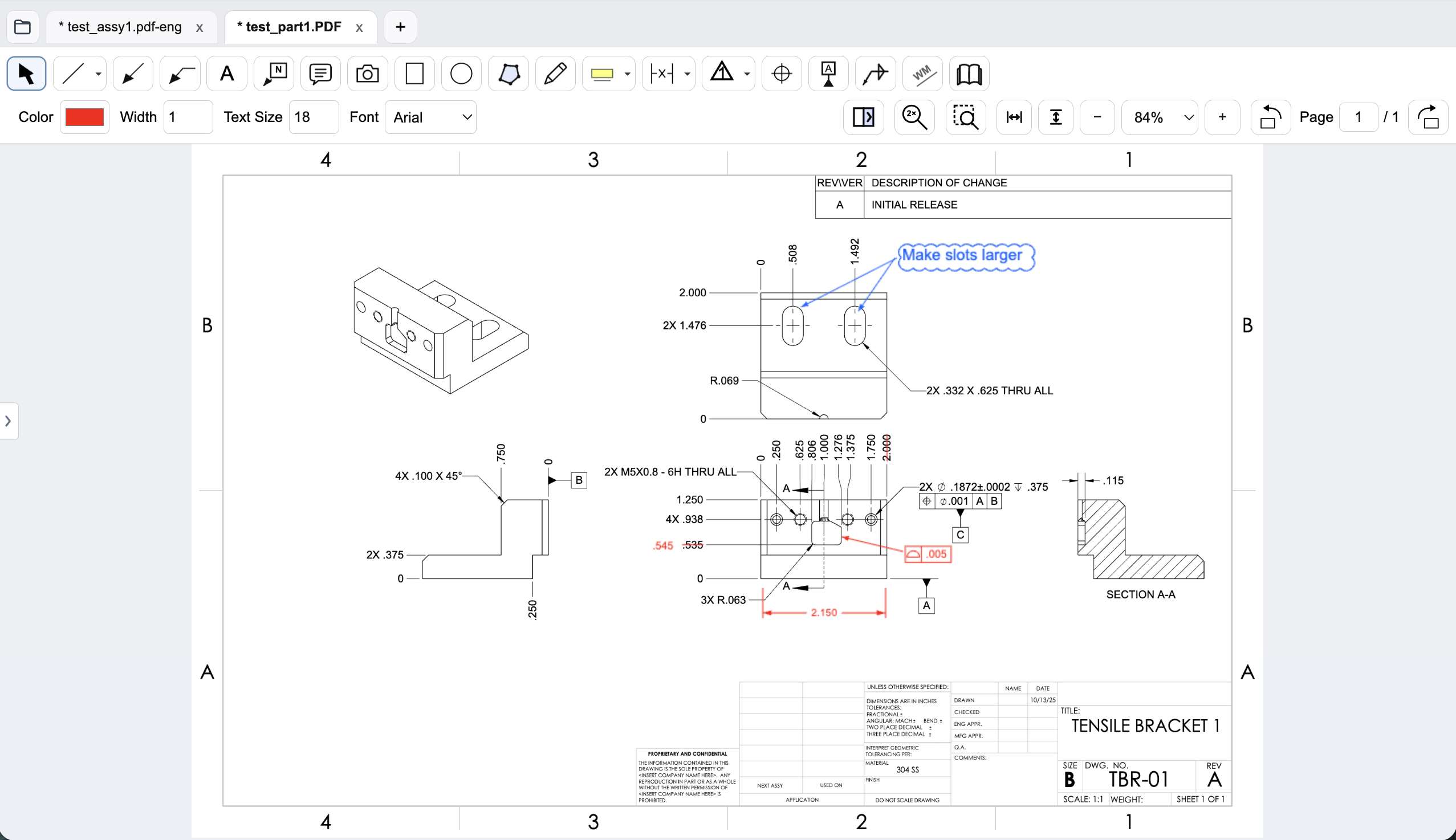
Workflow comparison
| Task | PDF Annotator | PDF Engineer |
|---|---|---|
| Writing and general markup | Text, handwriting, highlights, shapes, stamps, and inserted images. | General drawing annotations with dedicated mechanical callouts. |
| GD&T and assembly feedback | Evaluate stamps or inserted images for structured mechanical marks. | Native GD&T feature control frames, datum callouts, BOM balloons, flag notes, weld symbols, and leaders. |
| Measurement and dimensions | Advertises distance and area dimensions and angle measurement. | Mechanical redlines and proposed requirements; test any measured-dimension need separately. |
| Document processing and handoff | Vendor says PDFs are processed locally, not uploaded for editing; annotated PDFs open in standard viewers. | Rendering, markup, review, and export run locally. Internet services handle accounts, subscriptions, updates, and support. Save an editable .pdf-eng project and export a standard redlined PDF. |
A general editor can support custom or pasted mechanical marks. We do not treat an unlisted vendor feature as proof that a workflow is impossible.
Local processing is shared ground
PDF Annotator's FAQ says document editing happens on the Windows computer without uploading PDFs to its servers. PDF Engineer also processes drawing content locally. Privacy should therefore not be presented as a unique advantage over PDF Annotator.
The decision is more about how each application expresses engineering feedback. Compare native frames and item balloons with your current combination of stamps, handwriting, shapes, or inserted images. An established annotation convention can work well; the question is how easily it handles the next tolerance or assembly note.
Dimensions already exist in PDF Annotator
PDF Annotator advertises distance and area dimensions and angle measurement. A fair comparison must acknowledge those tools. If you review layouts or measure drawing distances, include that requirement in the pilot rather than equating mechanical specialization with a broader measurement feature set.
For a proposed tolerance change, create the same position frame and datum sequence in both workflows. Change the proposal once, then reuse it on another feature. PDF Engineer's native editor provides structured entry and a preview; judge whether that improves your recurring task enough to justify a subscription.
An affordable license may be sufficient
A one-time annotation license is an attractive option for an occasional reviewer. If most feedback is a sentence with a leader, PDF Annotator may cover it without the cost of a specialized annual plan. It also offers a trial, so the workflow can be evaluated before purchase.
Frequent mechanical reviewers should consider the cost of recreating and maintaining callouts as well as the license. Do not invent a time-saving percentage: record actual steps and review readability on a representative drawing. A useful change makes the feedback easier to author and interpret, not merely more decorative.
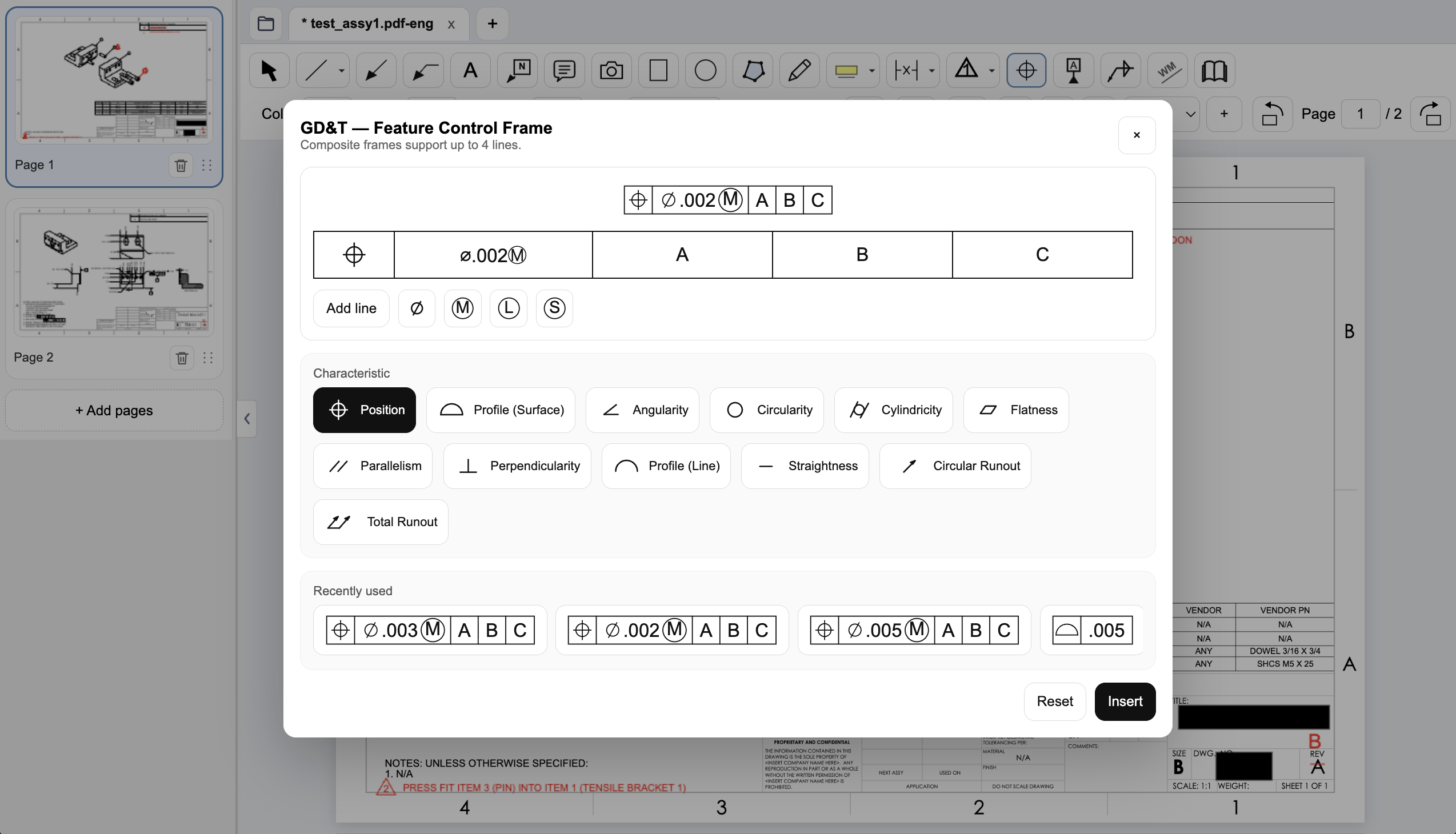
Create a native GD&T feature control frame
Choose the geometric characteristic, enter the tolerance and modifiers, and set the datum references in PDF Engineer’s frame editor. The preview shows the frame before insertion, and recently used frames are available for reuse.
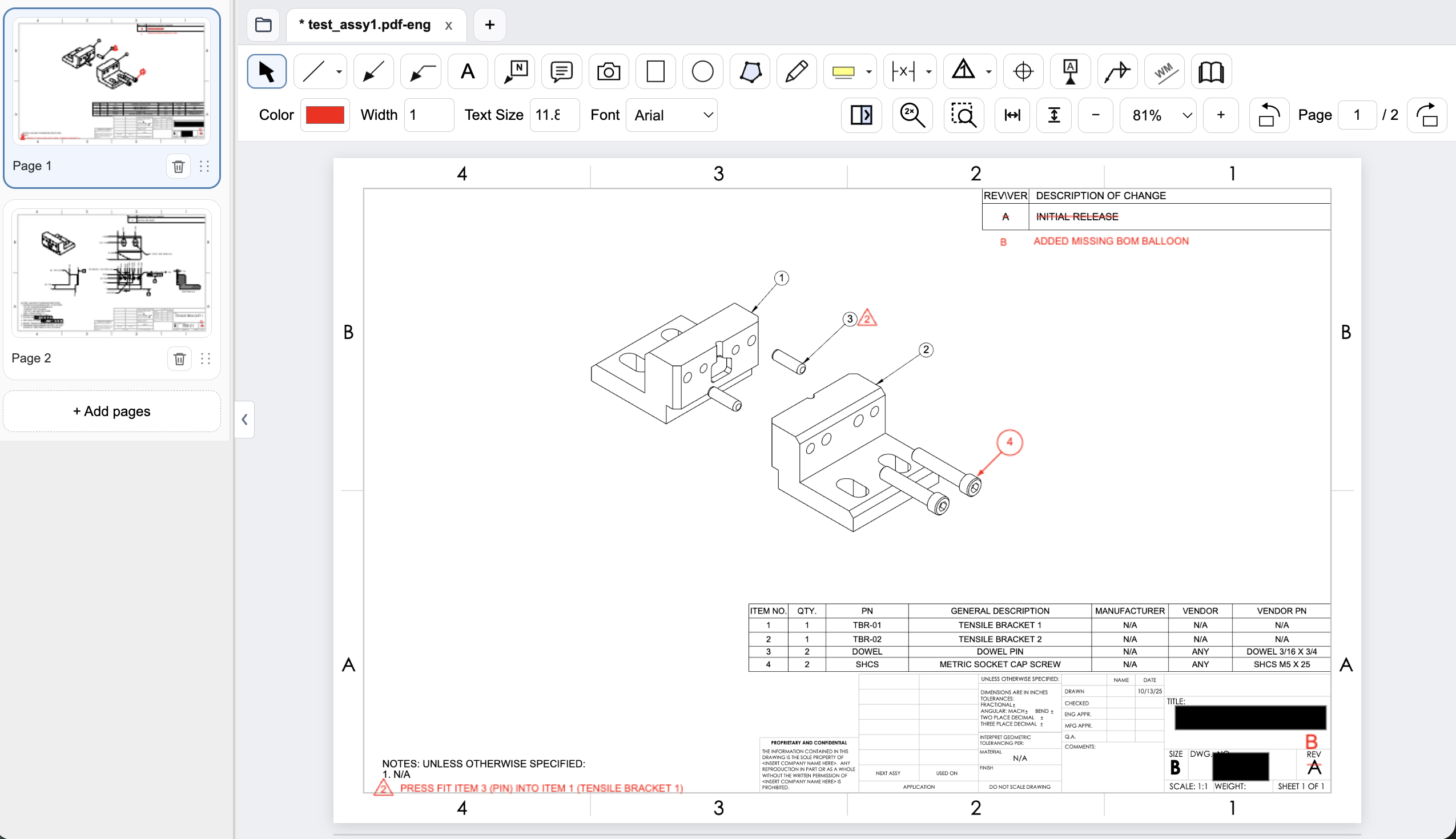
Connect assembly feedback to BOM items and notes
Place an item balloon at the component that needs attention and use a flag note to connect an assembly requirement to the drawing. In this example, the redline adds the missing item 4 balloon and flags a press-fit note for the dowel pin.
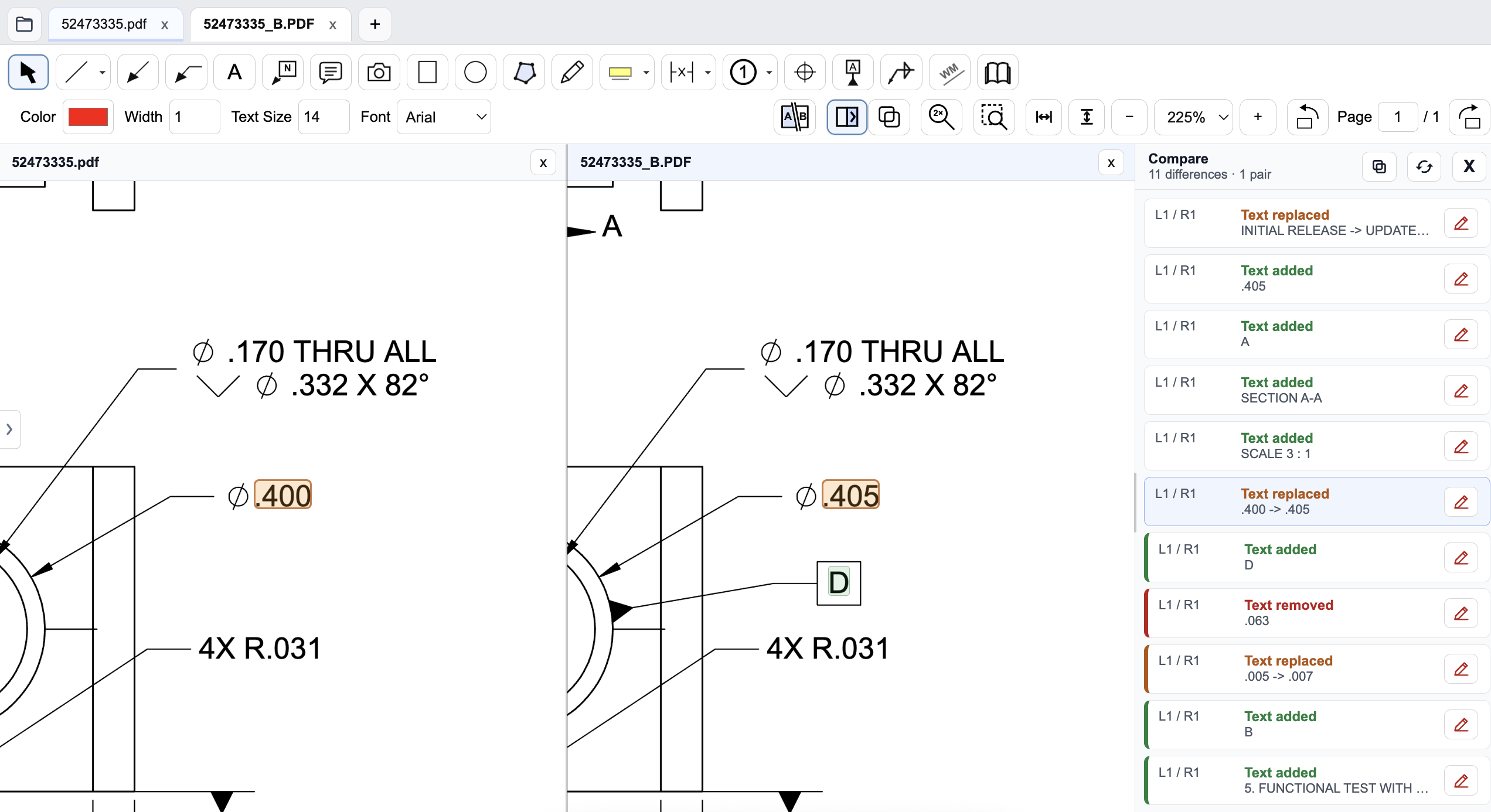
Review a drawing revision in PDF Engineer
Compare the old and new drawings side by side and inspect highlighted changes. The difference list identifies added, removed, and replaced text, helping reviewers find changed dimensions and notes. Review geometry and engineering intent as well; a text-difference list does not complete the drawing review.
Pricing and billing terms
US dollar prices checked October 9, 2026. Per-user list prices; taxes, promotions, and negotiated discounts can change the total.
| Plan | Price | Billing basis |
|---|---|---|
| PDF Annotator 10 | $79.95 once | Per-user perpetual license, 1–4-user tier; excludes tax |
| Optional Upgrade Assurance | $39.94 / 2 years | Upgrades and support for two years at the 1–4-user tier; separate from the license |
| PDF Engineer Professional | $300/year | $25/month equivalent, billed annually. $29/month with monthly billing. |
The base license is perpetual, not a subscription. Future major upgrades can be bought separately, or covered by optional Upgrade Assurance. Volume and student prices differ. The base license is cheaper than one annual PDF Engineer subscription.
When to choose PDF Annotator
Choose PDF Annotator if a local Windows annotation workflow, handwriting, measurement, and a perpetual license satisfy the job. Native mechanical callout authoring is the reason to evaluate PDF Engineer alongside it.
Test the decision on a real drawing
Use a bracket and assembly drawing. Add a dimensional proposal, a GD&T frame, an item balloon, and a press-fit flag note. Export both results and ask the drawing owner to interpret the required changes without verbal explanation.
Record the steps required, time spent, readability of the exported marks, and how easily another reviewer understands the request. Keep the same drawing and review tasks for both tools. Save the editable PDF Engineer project before exporting the standard PDF for handoff.
Download PDF Engineer