Software comparison · Mechanical drawing reviews
Nitro PDF vs PDF Engineer: Document Productivity or Drawing Review?
Choose PDF Engineer for frequent GD&T, BOM, and flag-note redlines. Choose Nitro when creating, converting, editing, and securing business PDFs is the main requirement.
Updated October 8, 2026 · Written by PDF Engineer
This comparison is published by PDF Engineer. Competitor details come from official vendor pages; recommendations reflect workflow fit, not a hands-on performance benchmark.
Where each tool fits
PDF Engineer
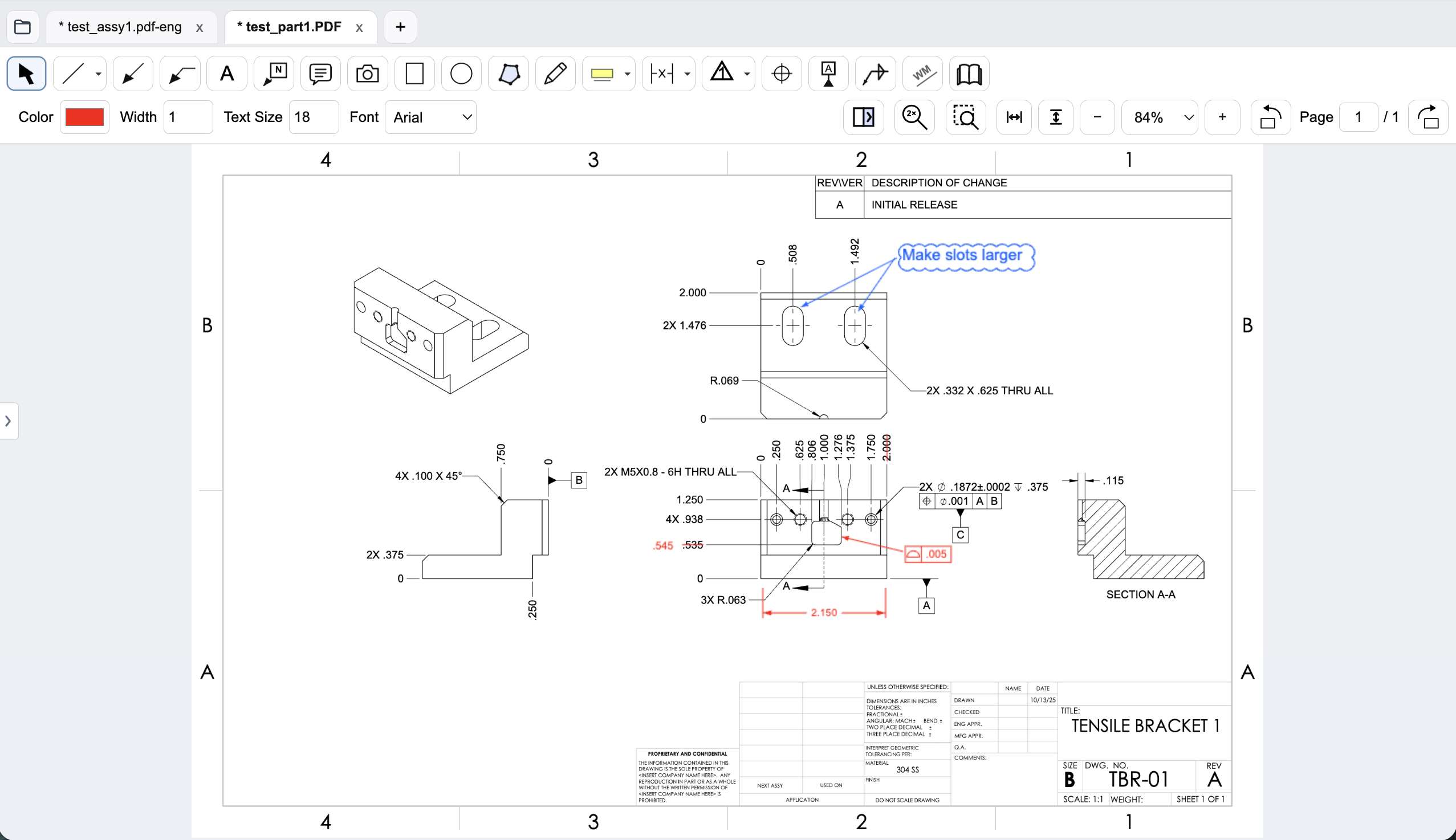
Mechanical drawing redlines with GD&T feature control frames, BOM balloons, flag notes, weld symbols, and leaders.
Workflow comparison
| Task | Nitro PDF | PDF Engineer |
|---|---|---|
| Mechanical callouts | General annotation and sharing tools; evaluate specialized mechanical markup requirements in a trial. | Native feature control frames, datum callouts, BOM balloons, flag notes, weld symbols, and leaders. |
| Document conversion | Creates, converts, combines, and edits PDFs, including Office-document workflows. | Focused on drawing review and redlined PDF output. |
| Enterprise deployment | Plus adds enterprise controls such as SSO and analytics. | Per-user subscriptions with company seat administration; evaluate your specific IT requirements. |
| License model | Standard subscription, sales-led Plus, or a three-year Classic Windows license. | Professional monthly or annual subscriptions and a 30-day full-feature trial. |
A general editor can support custom or pasted mechanical marks. We do not treat an unlisted vendor feature as proof that a workflow is impossible.
Start with the files your team actually reviews
A general document workflow may start with an office file, a scanned contract, or a form. Nitro’s product offering addresses PDF creation, editing, conversion, annotation, and security. That can suit an organization looking for one general document editor.
A mechanical drawing review starts with geometry, dimensions, notes, and manufacturing requirements. PDF Engineer’s native callouts address the feedback you place on those drawings: a tolerance proposal, a datum correction, a BOM item reference, or a flagged clarification for the supplier.
Separate licensing savings from review value
Nitro Standard’s annual subscription is cheaper than PDF Engineer Professional. A decision to add PDF Engineer should therefore be tied to a specific review need, such as clearer mechanical annotations or less manual construction of repeated callouts.
Avoid assuming every Nitro license covers the same platforms and capabilities. Classic is explicitly a Windows license for a three-year term. If your purchase depends on platform coverage or enterprise controls, verify the selected plan rather than relying on a screenshot of the ribbon.
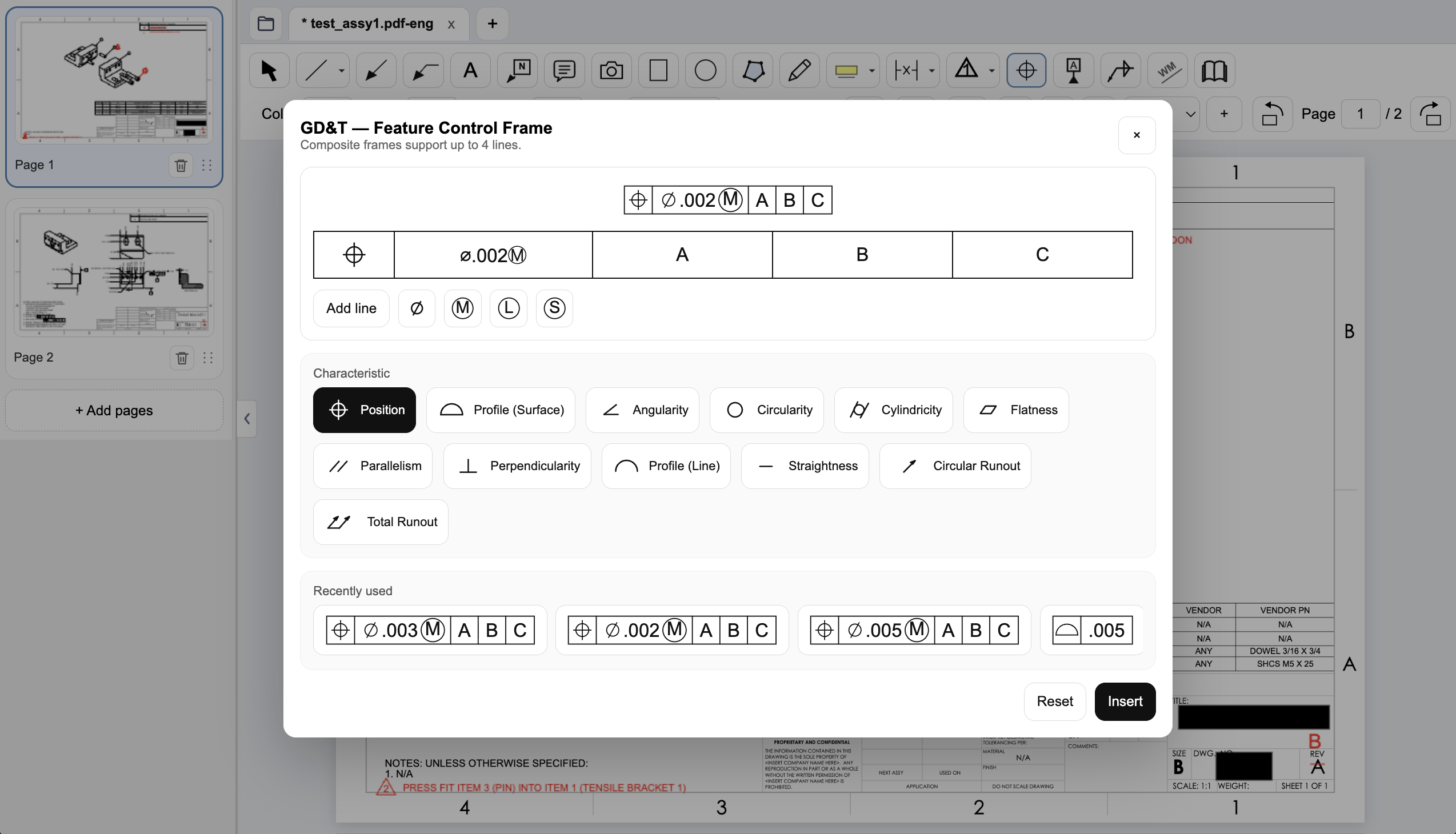
Create a native GD&T feature control frame
Choose the geometric characteristic, enter the tolerance and modifiers, and set the datum references in PDF Engineer’s frame editor. The preview shows the frame before insertion, and recently used frames are available for reuse.
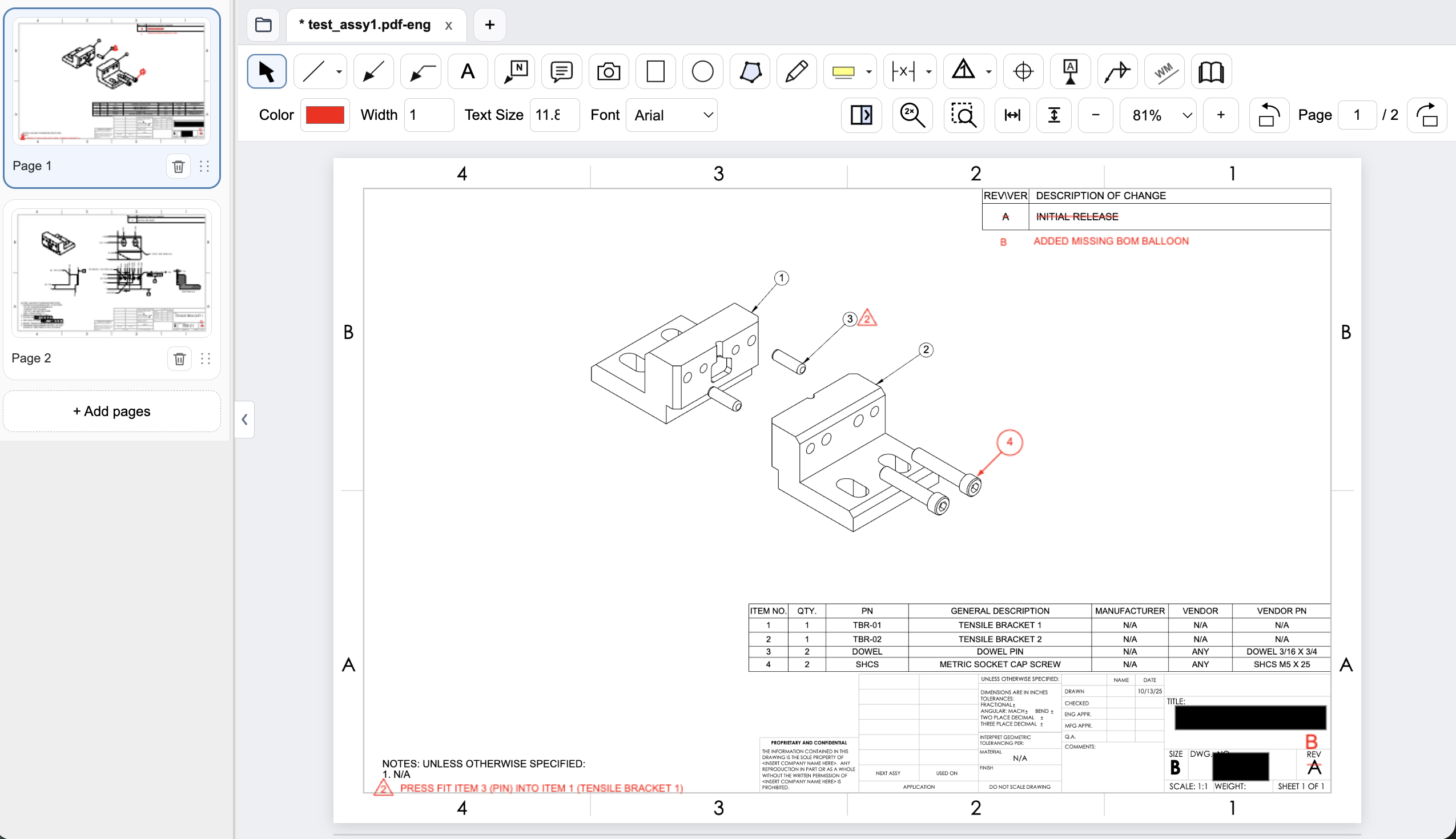
Connect assembly feedback to BOM items and notes
Place an item balloon at the component that needs attention and use a flag note to connect an assembly requirement to the drawing. In this example, the redline adds the missing item 4 balloon and flags a press-fit note for the dowel pin.
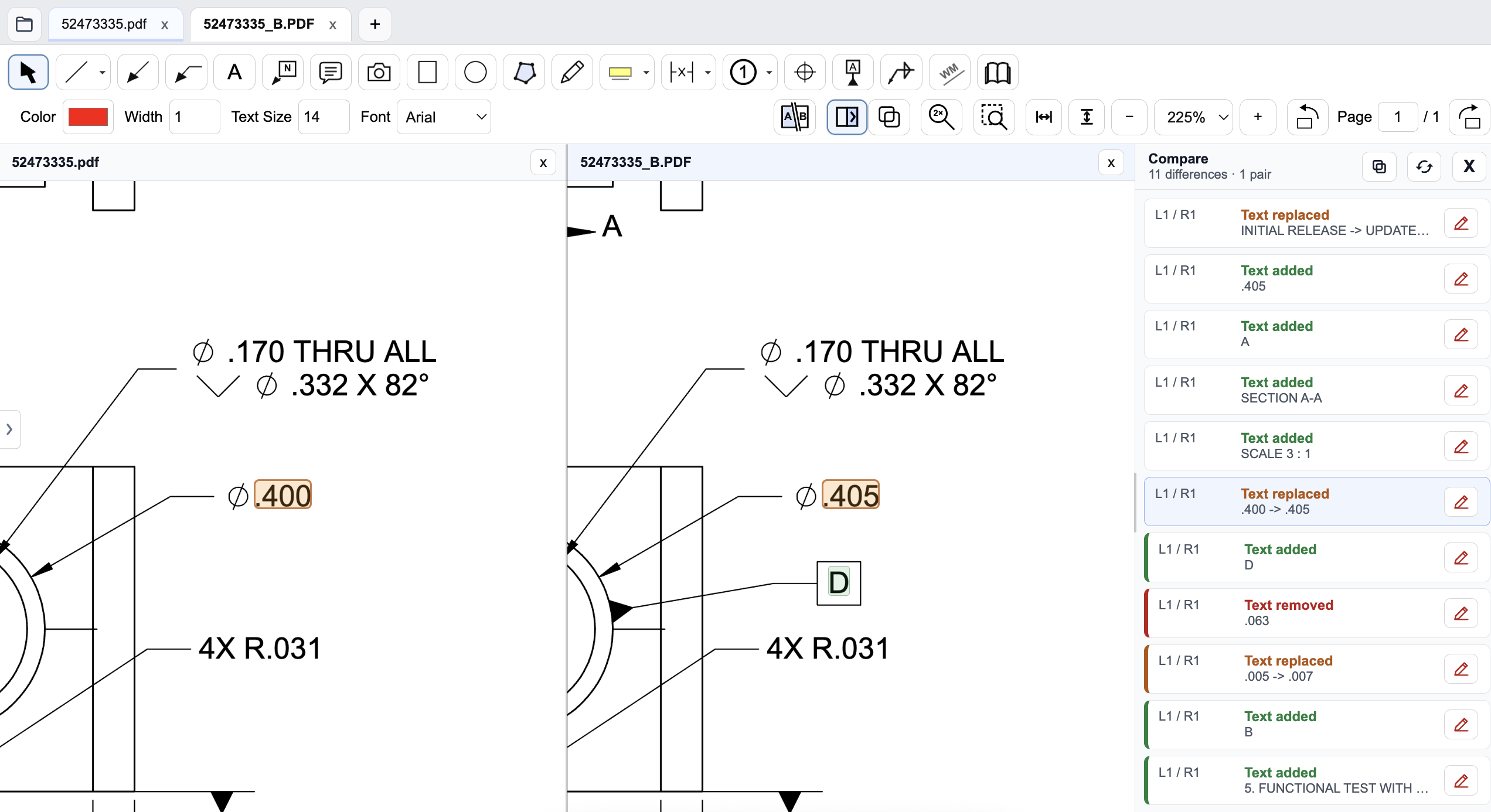
Review a drawing revision in PDF Engineer
Compare the old and new drawings side by side and inspect highlighted changes. The difference list identifies added, removed, and replaced text, helping reviewers find changed dimensions and notes. Review geometry and engineering intent as well; a text-difference list does not complete the drawing review.
Pricing and billing terms
US dollar prices checked October 8, 2026. Per-user list prices; taxes, promotions, and negotiated discounts can change the total.
| Plan | Price | Billing basis |
|---|---|---|
| Nitro PDF Standard | $180/year | $15 per user/month equivalent, billed annually |
| Nitro PDF Plus | Contact sales | Enterprise subscription; volume pricing |
| Nitro PDF Classic | Check current offer | One payment for a three-year Windows license; amount not reliably displayed during review |
| PDF Engineer Professional | $300/year | $25/month equivalent, billed annually. $29/month with monthly billing. |
Nitro’s current plan names are Standard, Plus, and Classic. Classic is a three-year term, not an unlimited perpetual license. Standard is less expensive than PDF Engineer Professional on annual billing.
See the product context
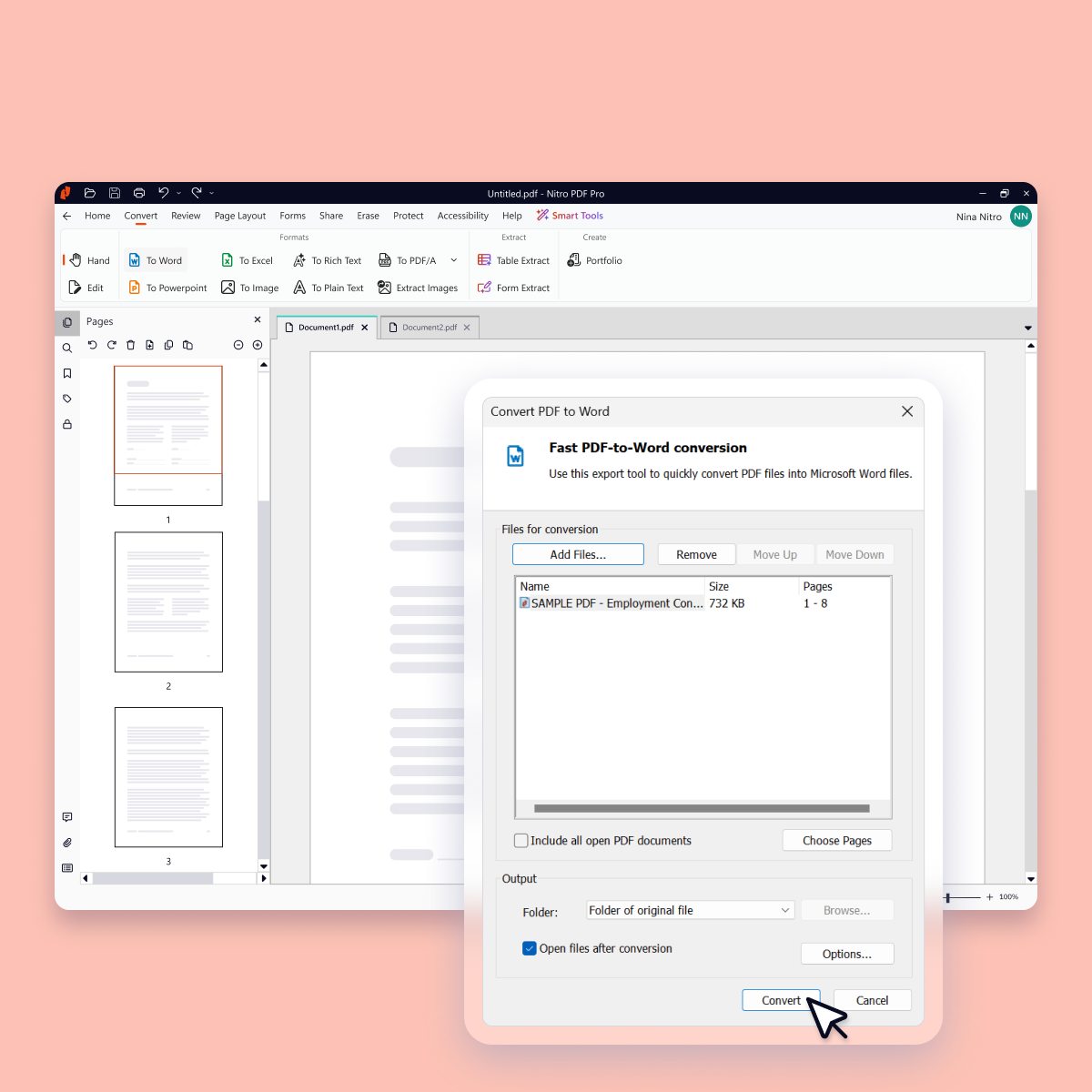
When to choose Nitro PDF
Choose Nitro if general document editing and conversion dominate your workload, or if its selected enterprise plan meets deployment needs that matter more than specialized mechanical callouts.
Test the decision on a real drawing
Review a supplier PDF with a GD&T proposal, a counterbore clarification, and assembly balloons. Compare the effort and exported result, then test an Office conversion task separately so the evaluation covers both workflows.
Record the steps required, time spent, readability of the exported marks, and how easily another reviewer understands the request. Keep the same drawing and review tasks for both tools. Save the editable PDF Engineer project before exporting the standard PDF for handoff.
Download PDF Engineer