Software comparison · Mechanical drawing reviews
Kofax Power PDF vs PDF Engineer: Tungsten Document Tools or Mechanical Review?
Choose Power PDF when general document preparation and business deployment requirements dominate. Choose PDF Engineer when the recurring task is annotating mechanical drawings with structured engineering marks.
Updated October 9, 2026 · Written by PDF Engineer
This comparison is published by PDF Engineer. Competitor details come from official vendor pages; recommendations reflect workflow fit, not a hands-on performance benchmark.
Where each tool fits
PDF Engineer
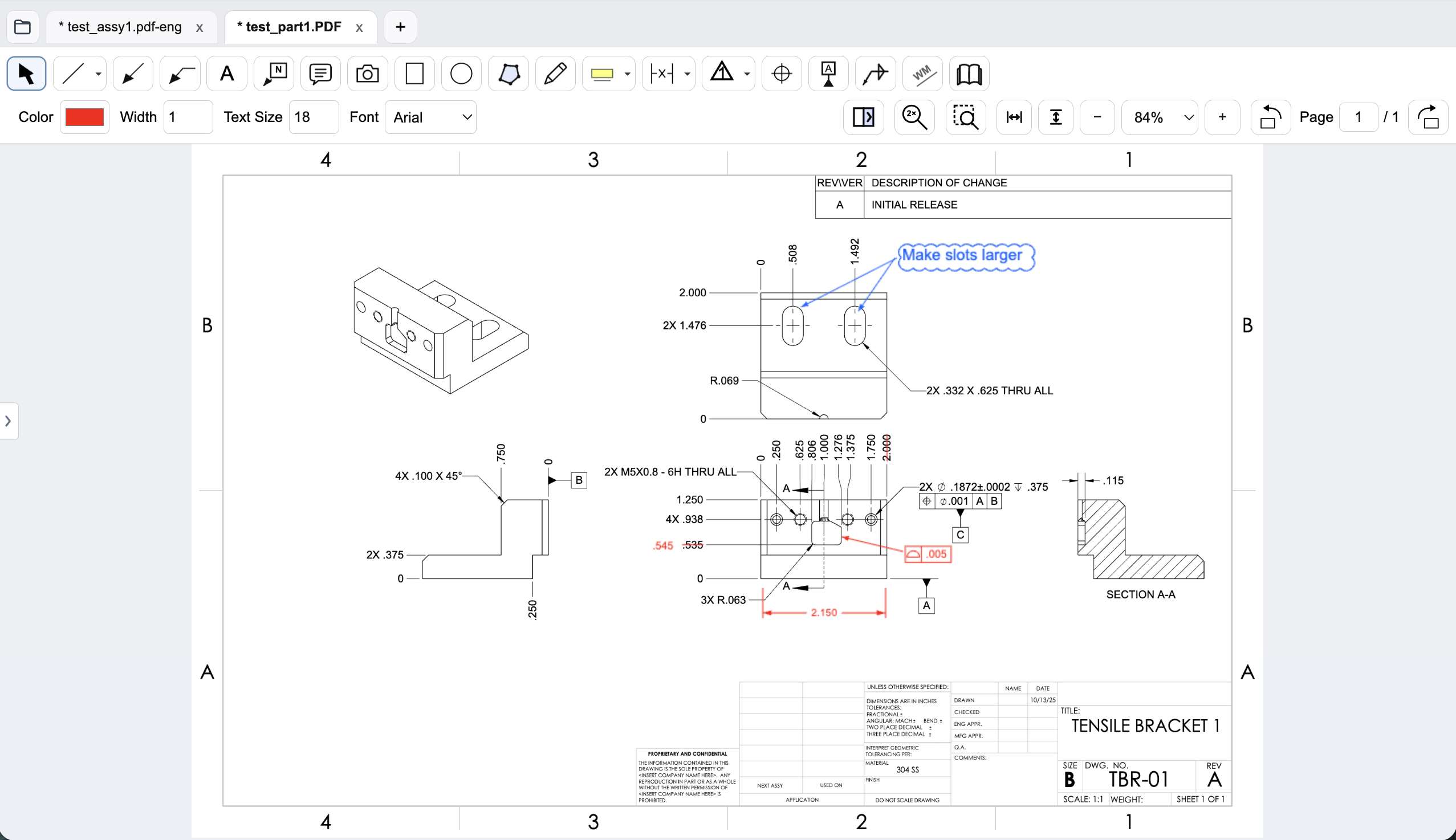
Mechanical drawing redlines with GD&T feature control frames, BOM balloons, flag notes, weld symbols, and leaders.
Workflow comparison
| Task | Tungsten Power PDF | PDF Engineer |
|---|---|---|
| Mechanical marks | General document tools; trial your mechanical symbols and annotation conventions. | Native GD&T feature control frames, datum callouts, BOM balloons, flag notes, weld symbols, and leaders. |
| Business PDFs | Standard lists PDF creation and editing; Advanced adds batch processing, redaction, Bates numbering, and document-system integrations. | Drawing review and redlined PDF output; retain document tools for other requirements. |
| Organization deployment | Business adds enterprise deployment options, administration, and services. | Monthly or annual per-user licensing with company seat administration; validate specific IT requirements. |
| Data path | Pricing lists offline use and optional cloud integrations; Business also includes a Cloud Editor. | Rendering, markup, review, and export run locally. Internet services handle accounts, subscriptions, updates, and support. |
A general editor can support custom or pasted mechanical marks. We do not treat an unlisted vendor feature as proof that a workflow is impossible.
Find the current product behind the Kofax name
If an existing workstation or purchase record says Kofax Power PDF, look up Tungsten Power PDF for current offers. An older installed version and a current Business deployment may have different capabilities and support terms. Compare the product your team would actually use.
Retail Standard and Advanced licenses are substantially cheaper upfront than a year of PDF Engineer Professional. A specialized drawing tool should earn its place through mechanical annotation needs, not through an assertion that enterprise PDF tools are always expensive.
Separate the drawing clarification from the document package
A supplier review may include a part drawing, a cover letter, inspection records, and a change log. Power PDF can be relevant to preparation and management of that broader package. PDF Engineer addresses the callouts placed on the part and assembly drawing itself.
Try adding a GD&T proposal and a flag note about inspection access. Check the authoring workflow and the result at the scale the supplier will read it. Then evaluate general editing, redaction, or batch tasks separately. A good redlining result does not establish that the same application can replace every document-management task.
Desktop use and cloud services can coexist
Power PDF's pricing page lists offline use alongside cloud-storage connectors and a Business Cloud Editor. Do not describe every Power PDF workflow as cloud processing, and do not assume every selected integration keeps content on the workstation.
PDF Engineer keeps document processing local, with online account and license services. For either product, ask IT to evaluate the actual feature configuration, storage destination, and sharing process. A local review tool does not replace the controls surrounding document distribution.
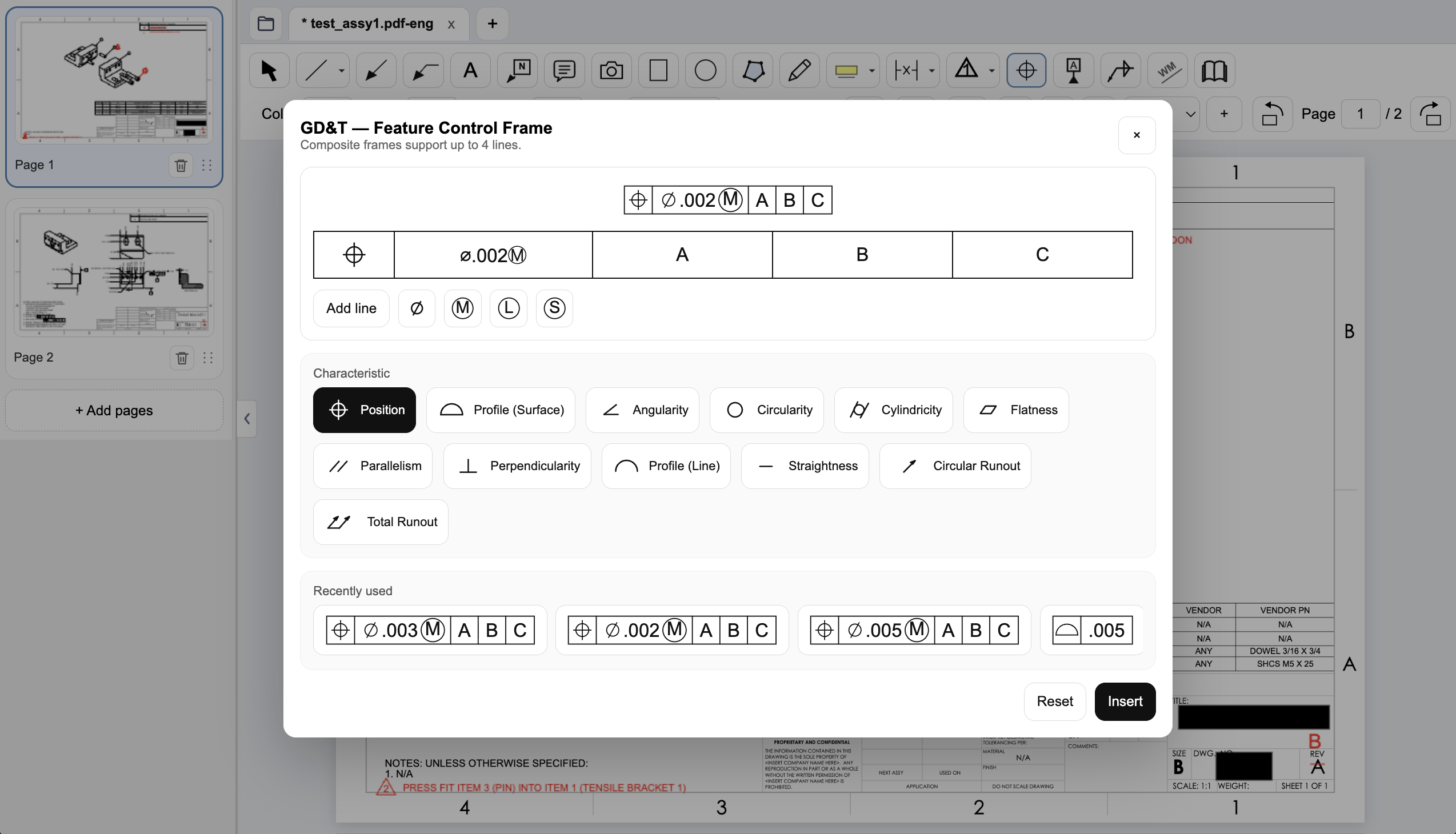
Create a native GD&T feature control frame
Choose the geometric characteristic, enter the tolerance and modifiers, and set the datum references in PDF Engineer’s frame editor. The preview shows the frame before insertion, and recently used frames are available for reuse.
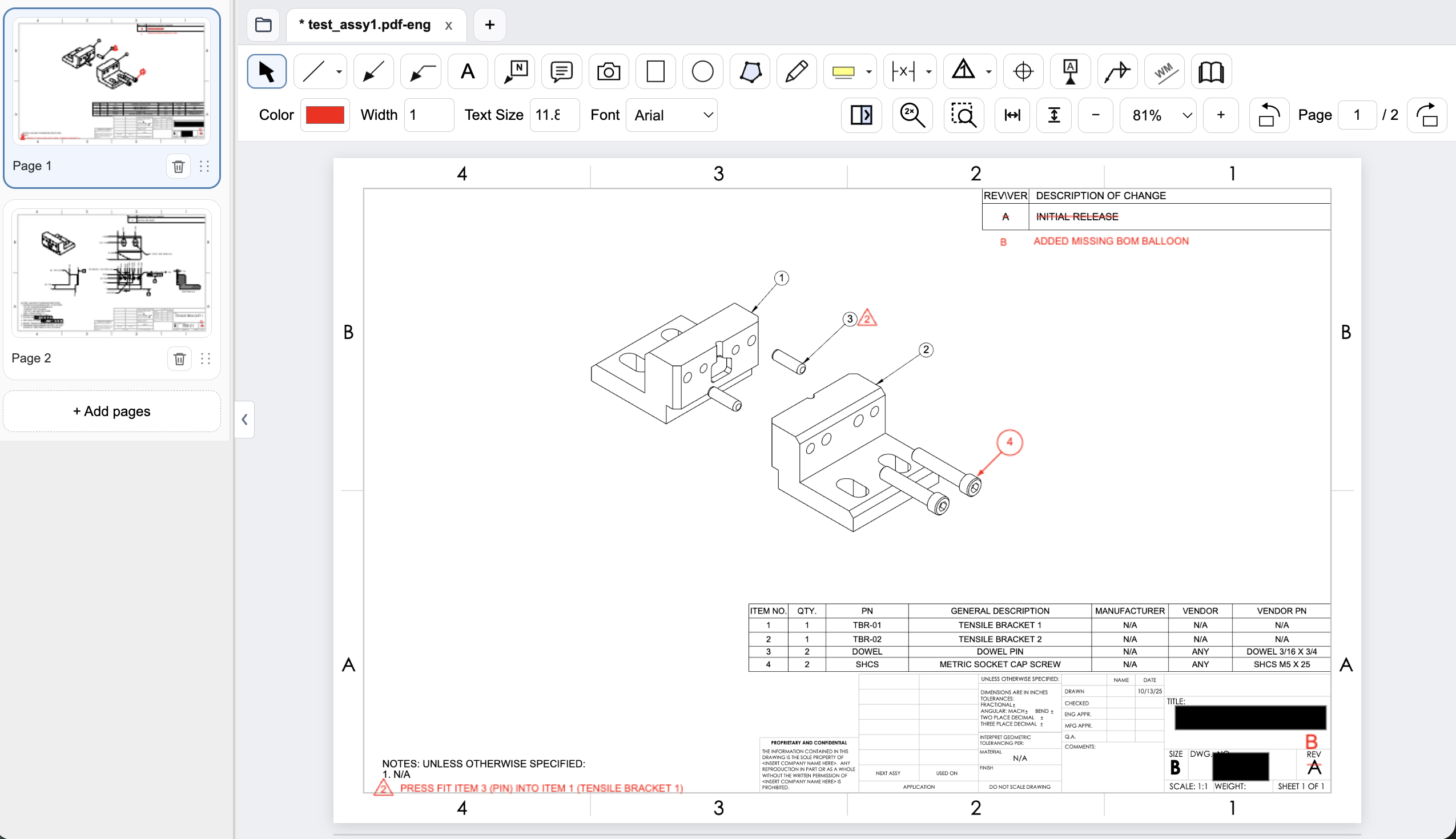
Connect assembly feedback to BOM items and notes
Place an item balloon at the component that needs attention and use a flag note to connect an assembly requirement to the drawing. In this example, the redline adds the missing item 4 balloon and flags a press-fit note for the dowel pin.
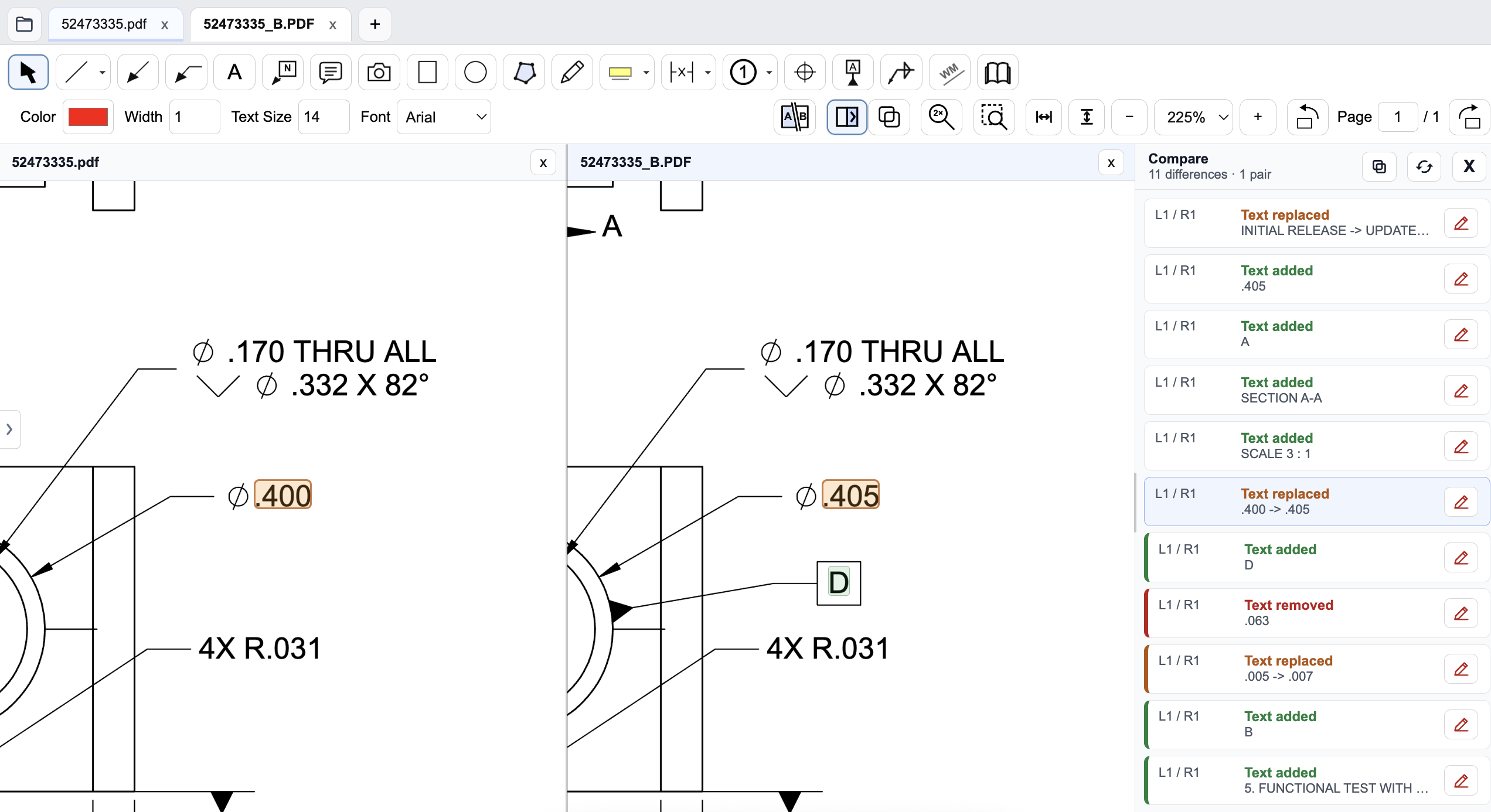
Review a drawing revision in PDF Engineer
Compare the old and new drawings side by side and inspect highlighted changes. The difference list identifies added, removed, and replaced text, helping reviewers find changed dimensions and notes. Review geometry and engineering intent as well; a text-difference list does not complete the drawing review.
Pricing and billing terms
US dollar prices checked October 9, 2026. Per-user list prices; taxes, promotions, and negotiated discounts can change the total.
| Plan | Price | Billing basis |
|---|---|---|
| Power PDF Standard | $129 once | One-time per-license price; tax calculated at checkout |
| Power PDF Advanced | $179 once | One-time per-license price; verify platform and version |
| Power PDF Business | Contact sales | Enterprise offering; pricing page lists a minimum of five users |
| PDF Engineer Professional | $300/year | $25/month equivalent, billed annually. $29/month with monthly billing. |
Kofax Power PDF is now sold as Tungsten Power PDF. Standard and Advanced prices are one-time purchases, not annual subscriptions. Business has different deployment and service terms; confirm those in a quote rather than extrapolating a retail license price.
When to choose Tungsten Power PDF
Choose Power PDF for general document preparation or business deployment requirements its selected edition addresses. Add PDF Engineer when native mechanical redlines solve a separate, frequent review need.
Test the decision on a real drawing
Prepare a supplier package with a drawing and supporting documents. Compare mechanical callout creation on the drawing, then separately test the business PDF and deployment functions you must retain.
Record the steps required, time spent, readability of the exported marks, and how easily another reviewer understands the request. Keep the same drawing and review tasks for both tools. Save the editable PDF Engineer project before exporting the standard PDF for handoff.
Download PDF Engineer