Software comparison · Mechanical drawing reviews
PDF-XChange Editor vs PDF Engineer: Mechanical Redlines or a General Editor?
Choose PDF Engineer for repeated mechanical callouts on part and assembly drawings. Choose PDF-XChange Editor when broad Windows PDF editing and a low-cost perpetual license cover your review needs.
Updated October 9, 2026 · Written by PDF Engineer
This comparison is published by PDF Engineer. Competitor details come from official vendor pages; recommendations reflect workflow fit, not a hands-on performance benchmark.
Where each tool fits
PDF Engineer
Mechanical drawing redlines with GD&T feature control frames, BOM balloons, flag notes, weld symbols, and leaders.
PDF-XChange Editor
Windows PDF editing, annotation, OCR, and perpetual licensing.
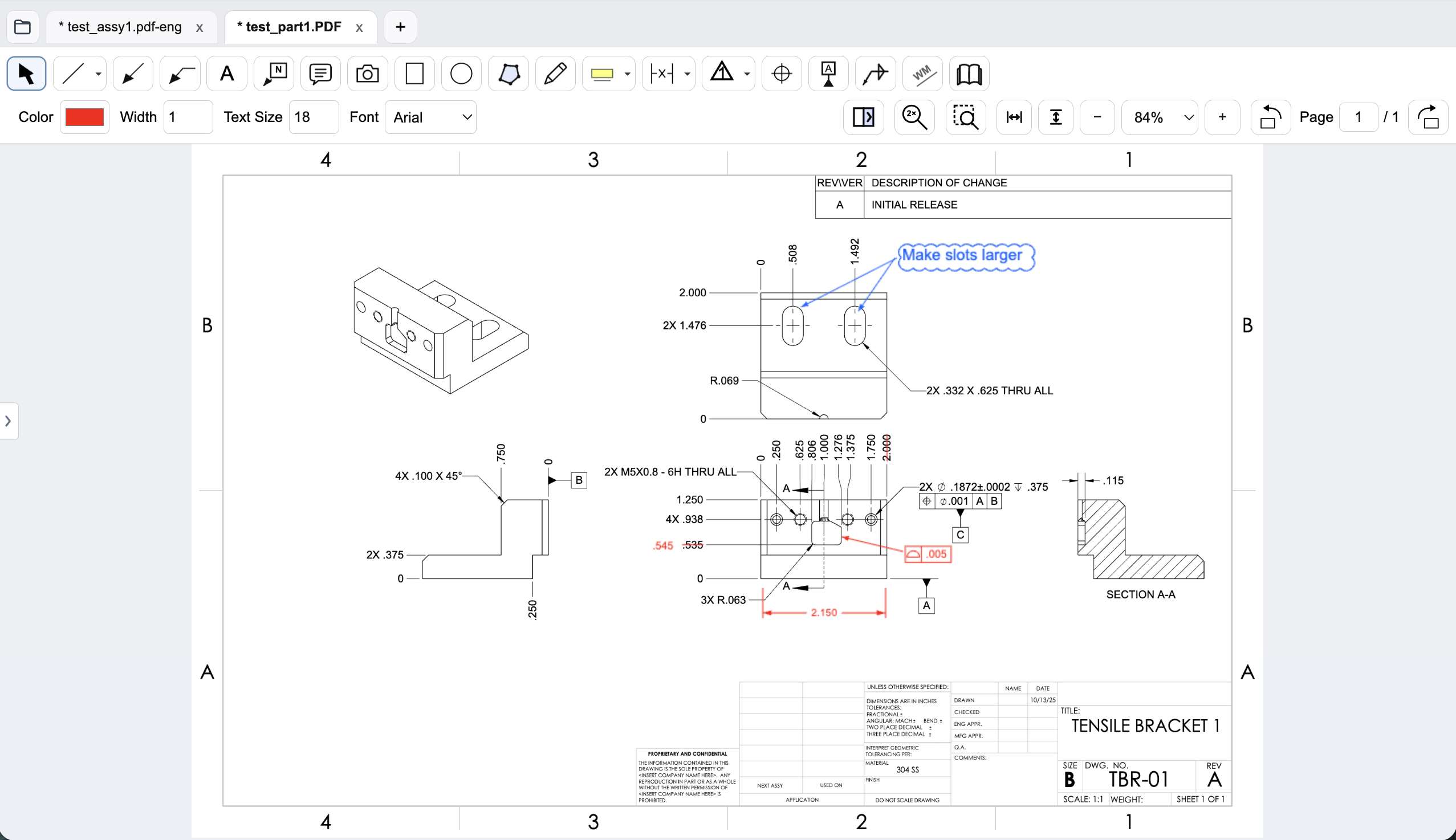
Workflow comparison
| Task | PDF-XChange Editor | PDF Engineer |
|---|---|---|
| GD&T and assembly callouts | Callouts, shapes, stamps, and general annotation; evaluate custom mechanical symbols on your drawing. | Native GD&T feature control frames, datum callouts, BOM balloons, flag notes, weld symbols, and leaders. |
| Dimensions and measurements | Distance and area measurement annotations are listed in the product features. | Mechanical drawing redlines and proposed dimension changes; verify any scale-based measurement requirement separately. |
| PDF editing and revision checks | Broad PDF editing; Editor Plus lists document comparison, enhanced OCR, and form creation. | Focused drawing review with side-by-side revision comparison and text differences. |
| Document processing | Windows desktop editor with optional cloud and AI features; selected services change the data boundary. | Rendering, markup, review, and export run locally. Internet services handle accounts, subscriptions, updates, and support. |
A general editor can support custom or pasted mechanical marks. We do not treat an unlisted vendor feature as proof that a workflow is impossible.
A custom annotation library can be a good starting point
If your Windows team already uses a consistent stamp library, start by reviewing what it actually covers. A reusable image can communicate a common inspection note very well. The harder cases are callouts whose internal structure changes: a tolerance value, a material condition modifier, or a different sequence of datums.
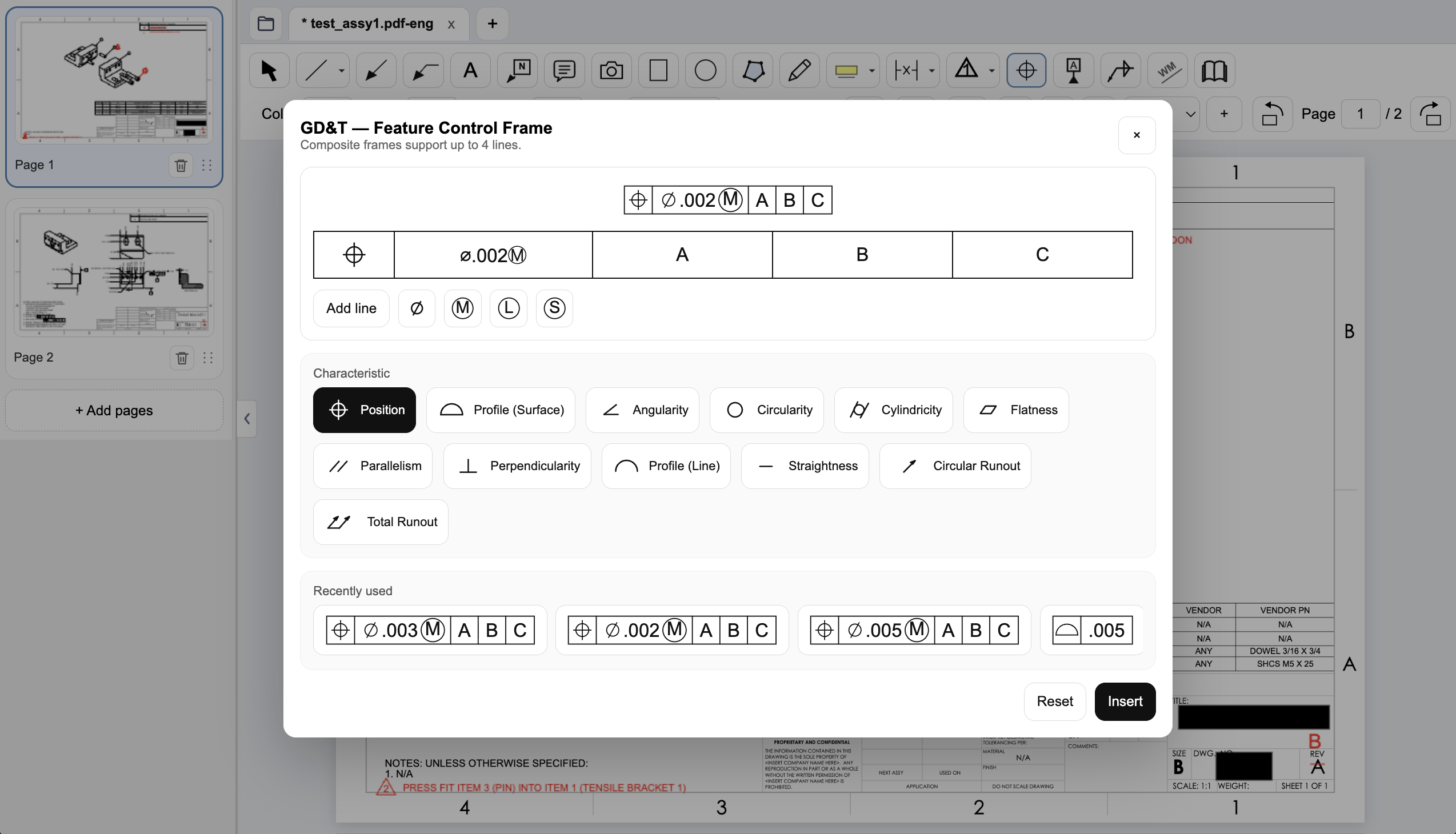
For a bracket review, propose a position frame referencing A, B, and C, then change the tolerance and modifier. In PDF Engineer, use the native frame editor shown below. In PDF-XChange, test your existing callout or stamp workflow rather than assuming the task cannot be done. Assess editability, alignment, and whether the next reviewer can reproduce the result.
Where PDF-XChange has the broader toolkit
PDF-XChange is a general PDF editor. Its product page lists measurement annotations and many document tools; Editor Plus adds comparison, enhanced OCR, and form creation. An engineer preparing inspection records as well as reviewing drawings may need that breadth.
PDF Engineer's advantage is the availability of dedicated mechanical marks in the review toolbar. It earns an additional license when those marks are a recurring part of the job. If the usual review consists of text boxes and arrows, run the cheaper general editor through the same pilot before buying another tool.
Local editing and optional online services
Do not label PDF-XChange a cloud-only product. It is a Windows desktop editor. Its current product page also describes cloud-storage features and an AI assistant that requires an API key. Sending content to an AI provider is a different activity from adding a local annotation.
PDF Engineer processes drawing content locally. That does not decide where your team stores or sends the exported PDF. For either tool, inspect the file location and enabled integrations, then have the drawing owner approve the actual sharing path.
Create a native GD&T feature control frame
Choose the geometric characteristic, enter the tolerance and modifiers, and set the datum references in PDF Engineer’s frame editor. The preview shows the frame before insertion, and recently used frames are available for reuse.
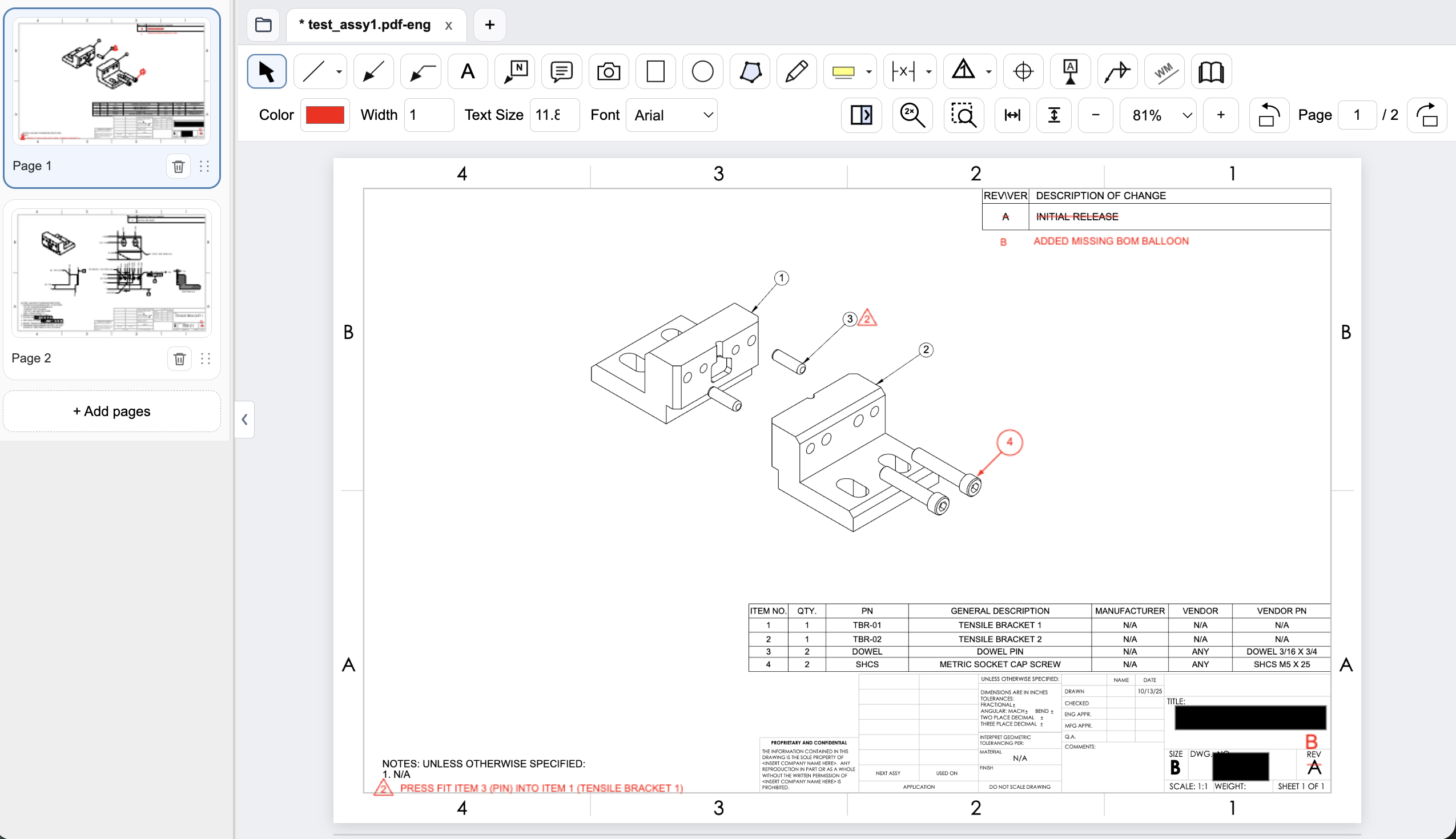
Connect assembly feedback to BOM items and notes
Place an item balloon at the component that needs attention and use a flag note to connect an assembly requirement to the drawing. In this example, the redline adds the missing item 4 balloon and flags a press-fit note for the dowel pin.
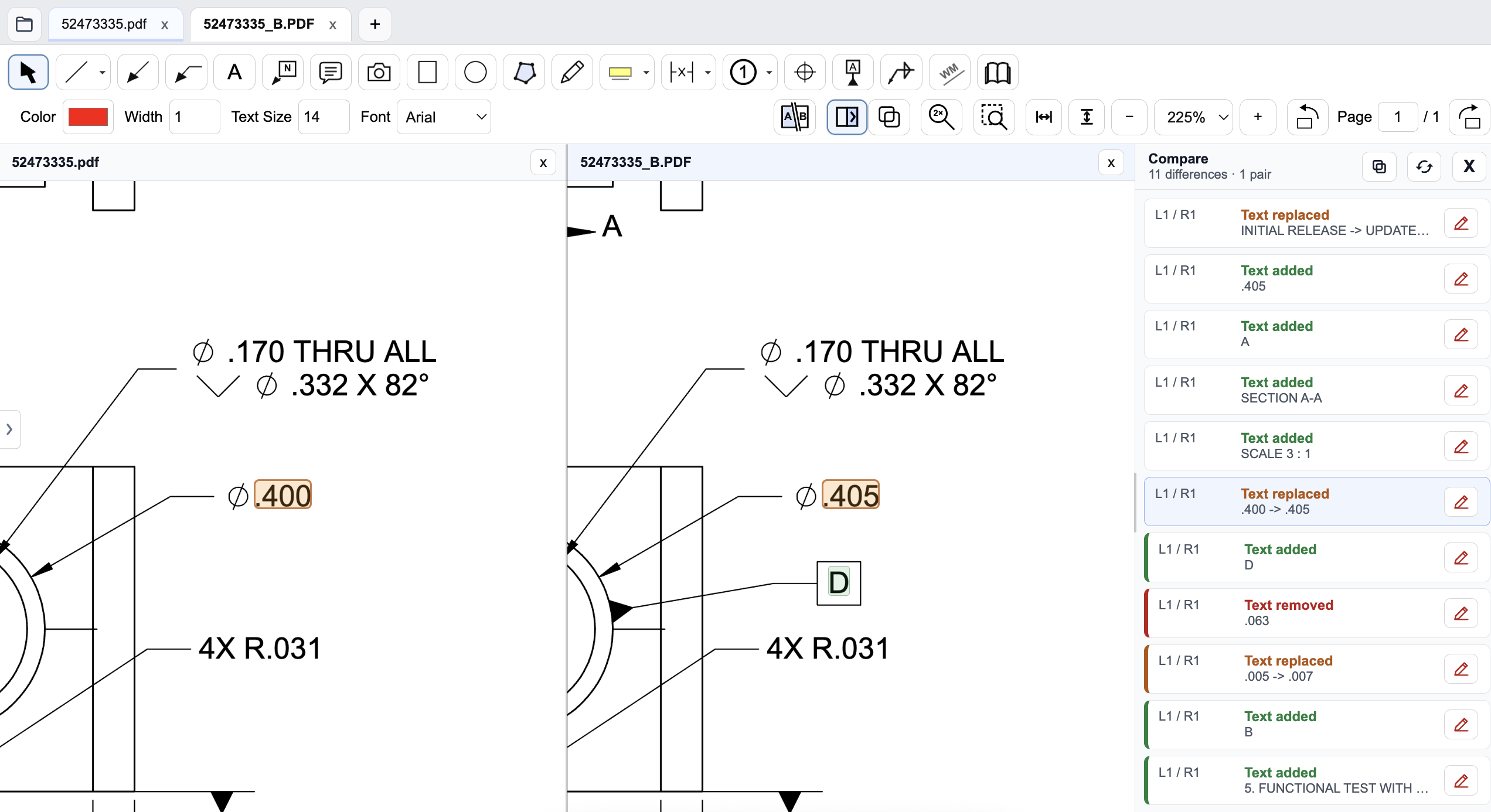
Review a drawing revision in PDF Engineer
Compare the old and new drawings side by side and inspect highlighted changes. The difference list identifies added, removed, and replaced text, helping reviewers find changed dimensions and notes. Review geometry and engineering intent as well; a text-difference list does not complete the drawing review.
Pricing and billing terms
US dollar prices checked October 9, 2026. Per-user list prices; taxes, promotions, and negotiated discounts can change the total.
| Plan | Price | Billing basis |
|---|---|---|
| PDF-XChange Editor | $62 once | Single-user perpetual license; ongoing maintenance is optional |
| PDF-XChange Editor Plus | $79 once | Single-user perpetual license; ongoing maintenance is optional |
| PDF Engineer Professional | $300/year | $25/month equivalent, billed annually. $29/month with monthly billing. |
These are one-time license prices, not monthly subscriptions. Optional maintenance changes the cost of staying current. Both licenses cost less upfront than one year of PDF Engineer Professional; the choice should depend on the drawing workflow.
When to choose PDF-XChange Editor
Choose PDF-XChange if its Windows annotation workflow is already sufficient and you also need general editing, OCR, forms, or a perpetual license. Test the correct edition for your required features.
Test the decision on a real drawing
Use a position tolerance, a changed dimension, and three BOM balloons. Edit each mark after placement, save, and reopen the exported PDF. Compare repeatability and readability; do not treat license price as a measured productivity result.
Record the steps required, time spent, readability of the exported marks, and how easily another reviewer understands the request. Keep the same drawing and review tasks for both tools. Save the editable PDF Engineer project before exporting the standard PDF for handoff.
Download PDF Engineer